Introduction
Powering on a Dell Laptop should be simple: press the power button and start working within seconds. Yet, many users still face unexpected hurdles. Some cannot locate the power button, while others see a blank screen, a frozen Dell logo, or hear fans spinning without display output.
With technology evolving in 2026, Dell laptops now include faster SSDs, advanced BIOS features, AI-based diagnostics, and firmware-level security. While these features improve performance, they sometimes make startup issues seem more complicated for beginners. This guide bridges that gap, offering clear, practical steps for starting your Dell laptop, resolving common startup problems, and understanding the boot process.
By following this guide, you will learn:
- How to start a Dell laptop safely and efficiently
- The exact location of the Dell power button
- First-time setup and Windows 11/12 integration tips
- How the Dell boot process works, step by step
- Troubleshooting black screens, frozen logos, or repeated restarts
- How to enter BIOS and use advanced diagnostics
Whether you are a student, office worker, or IT professional, this guide ensures you can power up your Dell laptop reliably in 2026.
What Does “Starting a Dell Laptop” Actually Mean?
Many users equate starting a laptop simply with pressing a button. In reality, powering up a Dell laptop involves a complex series of automated processes that occur within milliseconds.
Here’s an overview:
- Power supply activation from the battery or AC adapter
- Motherboard initialization
- POST (Power–On Self Test)
- BIOS/UEFI firmware execution
- Hardware detection, including RAM, storage drives, and display
- Bootloader execution
- Operating system initialization
If any of these stages encounter an error, your laptop may:
- Refuse to power on
- Display a black screen
- Freeze on the Dell logo
- Restart repeatedly
Grasping this sequence allows you to identify and resolve startup problems systematically rather than guessing blindly.
Where Is the Power Button on a Dell Laptop?
The power button’s position varies depending on the Dell model, yet several patterns are common:
Common Power Button Locations
- Above the keyboard — most standard laptops
- Top-right corner of the keyboard deck
- Integrated into the keyboard (sometimes, no power icon is shown)
- Inside the fingerprint scanner on newer models
- Side edge on 2-in-1 convertible laptops
Pro Tip:
If you cannot see a power symbol, look for a key that:
- Feels slightly raised or isolated
- Differs subtly from other keys
- Shows a fingerprint or recessed icon
Remember: Press the power button once only; repeated taps may confuse the system and prevent startup.
How to Start a Dell Laptop (Beginner-Friendly Steps)
For beginners or first-time Dell users, here is a simple, step-by-step Method to start your Laptop safely.
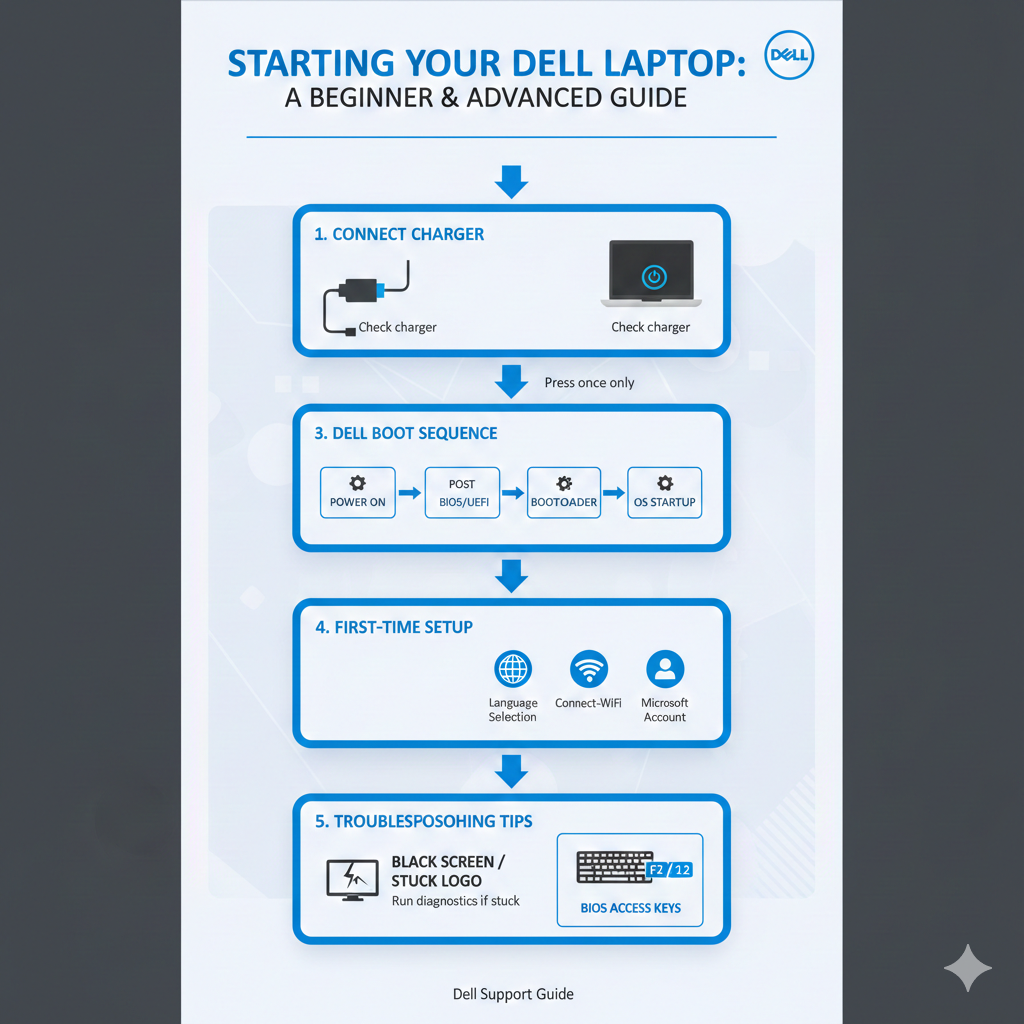
Connect the Charger (Highly Recommended)
Even if your battery indicates remaining power, connecting the charger ensures a stable startup.
Why this matters:
- Prevents low-battery failures
- Protects BIOS during boot
- Avoids sudden shutdowns
Checklist before startup:
- Charger properly connected
- Wall outlet functioning
- Charging LED indicators:
- White = Fully charged
- Amber/orange = Charging
- No light = Possible power problem
Press the Power Button Correctly
- Press once
- Hold for 2–3 seconds
- Avoid multiple taps
Indicators of normal startup:
- Keyboard backlight (if available)
- Fan spinning
- The logo appears on the screen
Troubleshooting Tip:
If there is no response after 10 seconds, stop and move to the dedicated troubleshooting section below.
Wait for the Dell Boot Screen
During a regular Dell startup:
Power On → Dell Logo → Loading Screen → Login
Average startup times:
- HDD-based laptops: 30–60 seconds
- SSD-based laptops: 10–20 seconds
Tips to Avoid Startup Problems Long-Term
- Keep BIOS updated
- Avoid forced shutdowns
- Use the original Dell charger
- Never interrupt system updates
- Maintain battery health
New Insight (2026): Dell laptops now support auto BIOS recovery after failed updates—ensuring minimal downtime for remote or enterprise users.
Dell Laptop First-Time Setup
If your Dell laptop is brand new, the first boot triggers the Windows setup wizard.
First-Time Setup Steps
- Choose language
- Select region
- Choose keyboard layout
- Connect to Wi-Fi
- Sign in with a Microsoft account
- Set up PIN or fingerprint
- Accept license agreements
- Wait for the system configuration
Many Dell systems include SupportAssist, which:
- Installs device drivers
- Updates BIOS
- Runs hardware diagnostics
This ensures your laptop is ready for long-term use.
Understanding the Dell Boot-Up Sequence
Recognizing the boot stages helps locate the cause of startup failures.
| Stage | What Happens |
| Power On | Battery/adapter delivers energy |
| POST | System checks CPU, RAM, and storage |
| BIOS/UEFI | Firmware initializes hardware |
| Bootloader | OS begins loading |
| OS Startup | Login screen appears |
Note: If the laptop freezes at a particular stage, that’s where the issue likely resides.
Dell Laptop Won’t Turn On — Causes & Fixes
One of the most frequently searched Dell issues globally is “laptop won’t power on.”
Common Causes
- Completely drained battery
- Damaged or incompatible charger
- Residual static electricity
- Loose internal components
- BIOS or firmware corruption
- Motherboard malfunction
Perform a Power Drain Reset
This method resolves many “dead Dell laptop” scenarios.
Steps:
- Turn off the laptop
- Unplug the charger
- Remove all peripherals
- Press and hold the power button for 15–20 seconds
- Reconnect charger
- Press the power button once
Check Charger & Power Source
- Test another wall outlet
- Inspect the cable for damage
- Use the original Dell charger or a certified equivalent
Remove External Devices
Sometimes, external devices prevent startup. Disconnect:
- USB drives
- External mouse/keyboard
- HDMI cables
- SD cards
Restart after removal.
Dell Turns On, but Screen Is Black
If your Dell powers on but the screen remains blank, possible causes include:
- Display brightness set to zero
- External monitor default setting
- Graphics driver corruption
- Loose LCD cable
Quick Fixes
- Press Fn + Brightness Up
- Connect an external monitor
- Restart and enter the BIOS for detection
How to Enter BIOS or Boot Menu on Dell
Advanced users often need to access the BIOS or Boot Menu for troubleshooting or configuration.
Dell Startup Keys
| Key | Function |
| F2 | Enter BIOS/UEFI |
| F12 | Boot Menu & Diagnostics |
Why enter BIOS?
- Adjust boot order
- Enable/disable Secure Boot
- Detect SSD/HDD
- Reset the firmware to the default
Dell Built-In Diagnostics & Self Tests
Dell laptops include powerful diagnostics tools to identify hardware or software issues.
Available Tools
- Pre-boot Diagnostics (F12 key)
- LED error codes
- Hardware health scans
Startup Issues vs Solutions (Quick Reference Table)
| Problem | Likely Cause | Solution |
| No power | Battery/charger | Power drain reset |
| Stuck on logo | Software/drive | Run diagnostics |
| Black screen | Display/GPU | External monitor |
| Slow startup | HDD/updates | SSD upgrade |
Understanding the Dell Boot-Up Sequence
| Stage | What Happens |
| Power On | Battery/adapter delivers energy |
| POST | System checks CPU, RAM, storage |
| BIOS/UEFI | Firmware initializes hardware |
| Bootloader | OS begins loading |
| OS Startup | Login screen appears |
New Insight (2026): Modern Dell laptops with hybrid SSD/HDD setups may perform an accelerated POST using Intel vPro or AMD PRO technologies, reducing startup delays by up to
Pros & Cons of Dell Startup Experience
Pros
- Reliable diagnostics
- Strong firmware security
- Business-grade system stability
Cons
- BIOS can overwhelm beginners
- LED codes are not always clear
- Entry-level laptops boot more slowly
Tips to Avoid Startup Problems Long-Term
- Keep BIOS updated
- Avoid forced shutdowns
- Use the original Dell charger
- Never interrupt system updates
- Maintain battery health
FAQs
A: Most commonly due to the battery, charger, or residual static. Perform a power drain reset.
A: Typically 30–60 seconds. SSD-equipped models boot faster.
A: Press F12, run diagnostics, and check storage detection.
Conclusion
Starting a Dell Laptop in 2026 is simpler and more reliable than ever with modern SSDs, AI diagnostics, and cloud BIOS updates. From locating the power button and completing first-time setup to advanced troubleshooting and BIOS navigation, this guide consolidates everything you need to power up your Dell laptop efficiently.
Pro Tip: Bookmark this guide for quick access—it’s crafted to remain relevant as Dell technology evolves, helping you start, troubleshoot, and optimize your Dell Laptop safely every time.











