Introduction
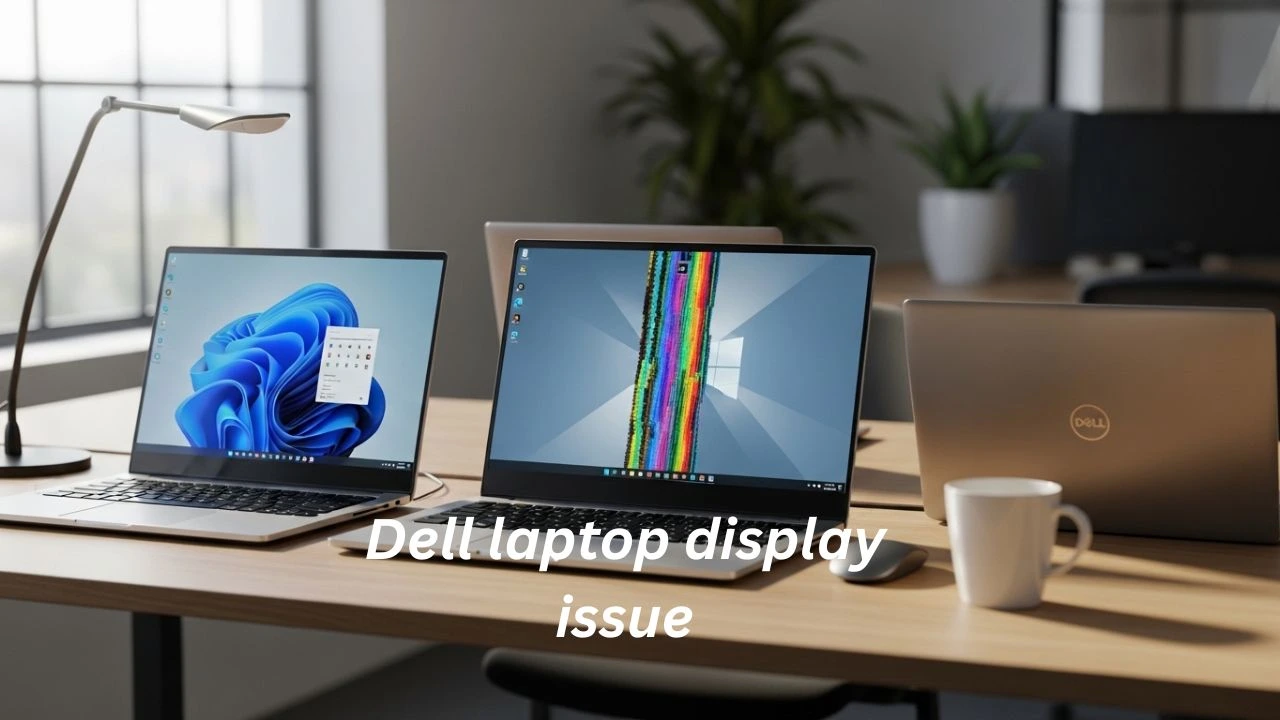
A Dell laptop is built for reliability, but a display issue disrupts productivity faster than a faulty display. Whether you’re working, studying, or editing important files, a screen that flickers, goes black, or shows distorted colors can instantly make the device feel unusable.
In 2026, Dell laptops are more advanced than ever, featuring high-refresh-rate panels, hybrid GPU switching, and AI-based power optimization. While these improvements enhance performance, they also introduce more complex display systems—meaning issues are no longer always caused by a broken screen.
The good news is this: most Dell laptop display problems are not permanent hardware failures. In fact, modern diagnostic trends show that a large percentage of screen-related issues come from driver conflicts, BIOS glitches, Windows updates, or power misconfigurations rather than physical damage.
This complete 2026 Dell Laptop Display Troubleshooting Guide will help you:
- Identify real display symptoms accurately
- Separate software issues from hardware failures
- Apply technician-level fixes safely at home
- Avoid unnecessary repair costs
- Understand when replacement is truly needed
Whether you’re a student, remote worker, or IT professional, this guide will help you confidently diagnose and fix Dell display problems step-by-step.
That is not always true.
In the real world, diagnostics show that over sixty percent of Dell laptop display issues are software-related, not hardware failures. The Dell laptop display issues can be caused by graphics drivers, BIOS firmware glitches, Windows update conflicts, power management misconfigurations, and loose internal connectors.
These are far more common than broken Dell laptop display panels. This 2026 Ultimate Dell Laptop Display Troubleshooting Guide is designed to eliminate confusion, misinformation, and unnecessary Dell laptop repair costs.
- How to correctly identify Dell laptop display symptoms
- How to distinguish software errors from physical hardware faults
- Step-by-step diagnostic workflows used by technicians
- Safe and proven fixes, from beginner to advanced level
- When screen repair or replacement is actually required
- How to avoid unnecessary service center expenses
- Tips to make your Dell laptop display longer
If you are a student working from home or are a business professional, freelancer, or IT expert, this guide will help you understand and fix Dell laptop screen issues easily.
Common issues with Dell laptop displays
Figuring out what is wrong with your screen is the way to find the real problem with your Dell laptop display. Each symptom points to a specific failure category.
Dell Laptop Screen Black but Power On
Symptoms
- Laptop powers on normally
- Cooling fan spins, and keyboard backlight turns on
- Caps Lock or Num Lock responds
- An external monitor may or may not display output
Likely Causes
- Corrupted or incompatible graphics driver
- BIOS display initialization failure
- Loose or partially disconnected LCD ribbon cable
- Backlight power failure
- Defective LCD panel
If your Dell laptop works perfectly on an external monitor, the GPU is usually healthy. The problem is almost always related to the internal display hardware or cable, not the graphics chip.
Dell Laptop Screen Flickering or Blinking
Symptoms
- Screen flashes randomly
- Brightness changes without input
- Flickering worsens on battery power
- Display stabilizes when plugged into AC
Likely Causes
- Incorrect or unstable refresh rate
- Corrupted Intel, NVIDIA, or AMD graphics drivers
- Power management conflicts
- Failing backlight or inverter circuitry
Lines on Dell Laptop Screen (Vertical or Horizontal)
Symptoms
- Thin or thick vertical/horizontal lines
- Lines may be black, white, green, pink, or multicolored
- Screen content remains visible behind the lines
- Lines appear during startup or the BIOS screen
Likely Causes
- Physically damaged LCD panel
- Loose or damaged display cable
- Panel driver IC malfunction
Dell Laptop Screen Dim, Yellow, or Discolored
Symptoms
- Yellow or warm color tint
- Extremely low brightness even at maximum
- Colors appear washed out or inaccurate
Likely Causes
- Night Light or HDR misconfiguration
- Aging LED backlight
- Panel voltage degradation
Software-Level Fixes
Update or Roll Back Graphics Drivers
Dell laptops often use Intel + NVIDIA/AMD hybrid graphics. After the 2025 Windows updates, driver conflicts have become more common due to automatic generic driver installs.
Best Practice (2026):
- Always download drivers from Dell Support
- Avoid Windows generic drivers
- Roll back if the issue started after the update
Quick Diagnostic First Steps
These fast checks resolve over 40% of Dell display complaints without advanced tools.
Brightness & Display Output Check
- Press Fn + Brightness Up
- Toggle display output (Fn + F8 / F10, model-dependent)
- Disconnect all external monitors
Many “black screen” cases are caused by incorrect output routing or brightness set to zero.
Hard Reset (Power Drain)
- Power off the laptop
- Unplug the charger and peripherals
- Hold the power button for 20–30 seconds
- Reconnect the charger and power on
This clears residual electrical charge that blocks display initialization.
External Monitor Test (Critical Step)
Connect your Dell laptop to:
- External monitor
- TV via HDMI
| Result | Meaning |
| External display works | Internal screen or cable issue |
| External display fails | GPU, BIOS, or motherboard issue |
Dell LCD Built-In Self Test (BIST)
- Power off the laptop
- Hold the D key + the Power button
- Observe color cycling
| Result | Diagnosis |
| Colors appear | Software issue |
| No colors | Hardware failure |
Software-Level Fixes
Update or Roll Back Graphics Drivers
Dell laptops typically use:
- Intel integrated graphics
- NVIDIA or AMD dedicated GPUs
Faulty driver updates often cause:
- Screen flickering
- Black screen after login
- Resolution lock issues
Best Practice
- Download drivers directly from Dell Support
- Avoid generic Windows Update drivers
- Roll back drivers if the issue started after an update
BIOS & Firmware Update
An outdated BIOS can:
- Fail LCD initialization
- Cause black screen at startup
- Break hybrid GPU switching
Always update BIOS while plugged into AC power.
Reset Display Settings
Set:
- Resolution → Recommended
- Refresh Rate → 60Hz
- Disable HDR and Night Light
Many color and brightness issues disappear instantly after resetting these options.
Intermediate Fixes
Boot into Safe Mode
If the display works normally in Safe Mode:
- The issue is software-related
- Hardware failure is unlikely
System Restore
Restore Windows to a point before the issue began.
This follows official Microsoft troubleshooting guidance.
Battery Flicker Fix
- Switch to Balanced power mode
- Disable adaptive brightness
- Update chipset drivers
Advanced Diagnostics & Hardware Checks
Reseat RAM Modules
Loose RAM can:
- Prevent display initialization
- Cause black screen with power on
LCD Cable & Backlight Inspection
Common signs:
- The screen works only at certain angles
- Flickers when the lid moves
- A very dim image is visible with a flashlight
Dell POST Beep / LED Codes
Dell laptops use diagnostic blink codes to indicate:
- GPU failure
- Panel detection error
- Power rail fault
Always check your model-specific service manual.
When Professional Repair Is Required
Hardware Repair Needed If:
- The panel is cracked
- Backlight is dead
- The ribbon cable is torn
- GPU is solder-failed
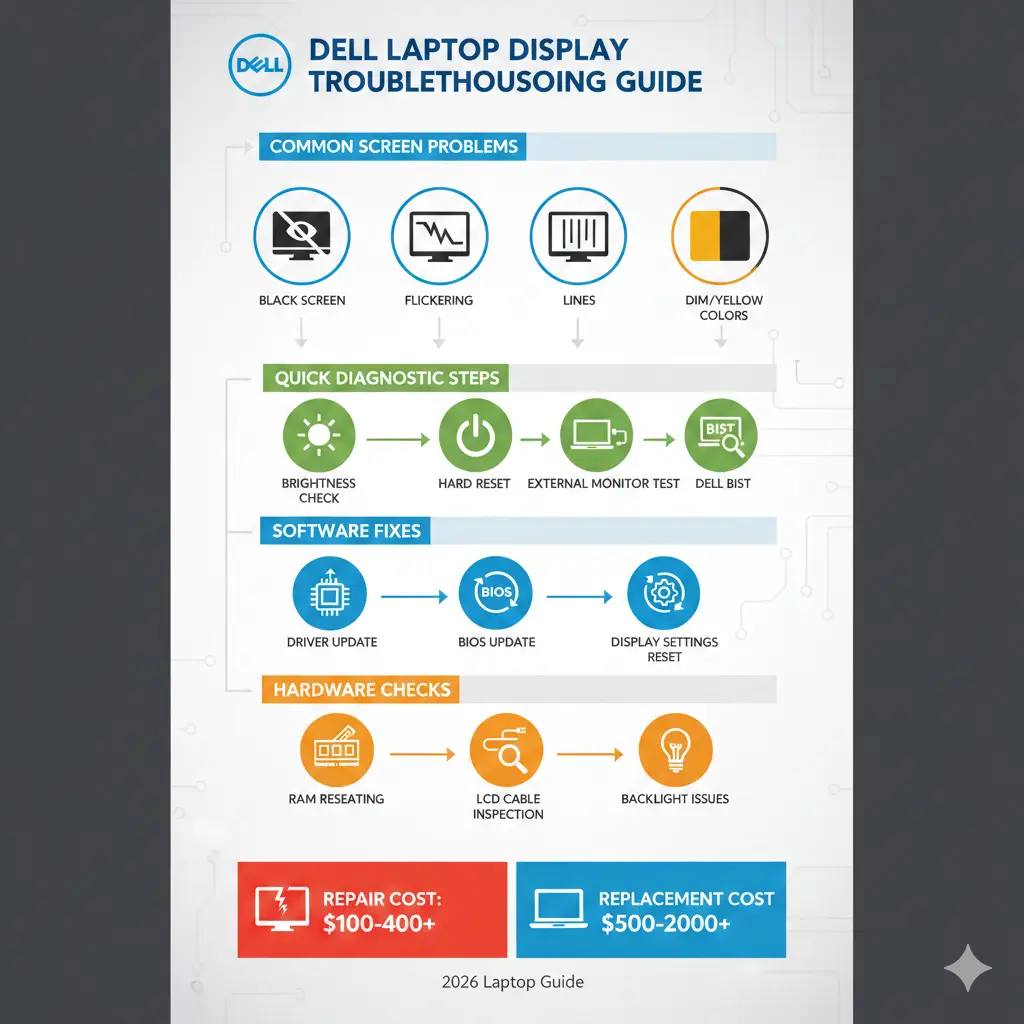
Cost Comparison Table
| Repair Type | Cost Level |
| LCD Panel Replacement | Medium |
| Cable / Inverter Repair | Low |
| Motherboard GPU Repair | High |
| External Monitor Use | Lowest |
Pros & Cons: Repair vs Replacement
Repair Pros
- Cheaper than buying new
- Data preserved
- Environment-friendly
Repair Cons
- Not worth it for very old models
- GPU repairs are expensive
FAQs
A: Power-saving features or backlight instability.
A: Yes for newer models, no for very old budget laptops.
A: Yes, corrupted drivers can break display output.
Conclusion
Dell Laptop Display issues may look serious, but most are solvable with a structured diagnosis approach. In 2026, many screen problems are no longer purely hardware failures—they are often caused by driver conflicts, BIOS behavior, or modern power optimization systems.
By following a step-by-step troubleshooting method, you can quickly identify whether the issue is software-related or requires physical repair. This not only saves time but also prevents unnecessary service center costs.
If your Dell laptop display issue persists after all software fixes, professional inspection is recommended to avoid further hardware damage. Otherwise, most users can restore full display functionality without replacing the entire system.
For more practical laptop troubleshooting guides and repair insights, continue exploring trusted resources and stay informed before making repair decisions.











