Introduction
If you’ve ever pressed an F-key on your HP laptop and gotten a completely different result than expected, you’re not alone. HP laptop Function Keys. One moment you’re trying to refresh a webpage with F5, and the next, your screen brightness drops. You press F2 to rename a file… nothing happens unless you hold another key. For gamers, programmers, and everyday users alike, this confusion can quickly turn into frustration.
Here’s the truth: HP Function Keys aren’t broken—they’re designed differently.
Once you understand how the Fn key, Fn Lock, and Action Keys Mode work together, everything becomes predictable and powerful.
This updated 2026 guide cuts through outdated tutorials and scattered support pages. You’ll learn exactly how HP function keys behave, how to control them permanently, and how to use them like a pro—whether you’re studying, gaming, coding, or working.
What Are Function Keys on an HP Laptop?
Function keys, commonly referred to as F-keys, are the row of keys labeled F1 through F12 located at the very top of your HP laptop keyboard. Traditionally, these keys were designed to execute software-level commands inside Windows and applications.
However, HP takes things a step further. Each HP function key performs two distinct roles, depending on how your keyboard is configured.
Standard Function Key Actions
These are the classic F-key behaviors that have existed for decades across Windows PCs:
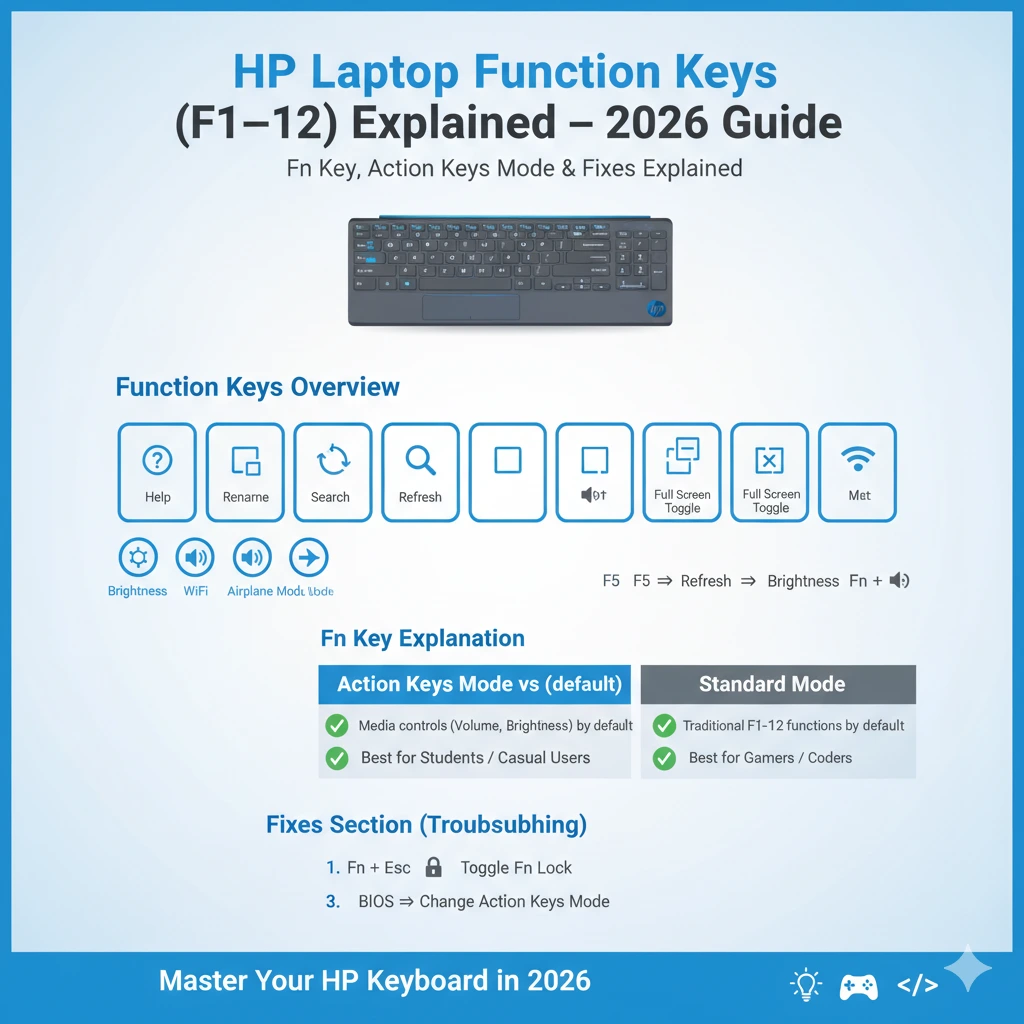
- F1 → Open Help menu
- F2 → Rename selected file or folder
- F5 → Refresh browser or File Explorer
- F11 → Toggle full-screen mode
These commands are widely used in:
- Windows navigation
- Web browsers
- Office applications (Excel, Word, PowerPoint)
- Games and professional software
HP Action / Hotkey Functions
HP overlays hardware-level shortcuts onto the same keys. These are indicated by icons printed directly on the keyboard:
- Screen brightness increase/decrease
- Volume up, volume down, mute
- Wi-Fi and airplane mode
- Microphone mute
- Keyboard backlight controls
- Media playback (play, pause, skip)
Smarter Keyboard Integration in Windows & HP Software
In 2026, newer HP laptops are increasingly integrated with Windows 11/12 system-level controls and HP utilities, which means function keys may behave differently depending on software layers—not just BIOS settings.
For example:
- Windows now prioritizes media controls in many apps
- HP Support Assistant may override default key behavior
- Some models dynamically switch modes based on usage (e.g., media vs productivity apps)
Practical tip:
If your keys behave inconsistently, check both:
- BIOS settings
- Windows keyboard settings & HP software
This dual-layer control is one of the biggest reasons users get confused today.
Where Are Function Keys Located on HP Laptops?
On virtually all HP laptops, function keys are positioned:
- Along the topmost row of the keyboard
- Directly above the number keys (1–0)
- Starting with F1 next to the Esc key
- Ending with F12 near the Delete key
Understanding the Fn Key on HP Laptops
The Fn key is not a standalone command. It behaves like Shift, Ctrl, or Alt—it modifies what another key does.
- Should the key trigger the standard F-key command?
- Or should it activate the HP hardware function?
Example Scenario
- Press F5
- Could refresh a page
- Or reduce screen brightness
- Press Fn + F5
- Triggers the opposite action
Which behavior occurs depends entirely on Action Keys Mode.
Action Keys Mode vs Standard Function Keys
| Behavior | Result |
| Press F-key alone | Hardware action (brightness, volume, Wi-Fi, media) |
| Press Fn + F-key | Standard F-key command |
Standard F-Key Mode
| Behavior | Result |
| Press F-key alone | Traditional function command |
| Press Fn + F-key | Hardware action |
Preferred by:
- Gamers
- Programmers
- Engineers
- Excel power users
- CAD and design professionals
How to Lock or Unlock the Fn Key on HP Laptops
Fn + Esc (Most Common)
- Press Fn + Esc
- Look for a padlock icon on the Esc key
- Fn Lock toggles instantly
Fn + Left Shift (Some Business Models)
- Found mainly on HP ProBook & EliteBook
- Toggles Fn behavior without entering BIOS
BIOS / UEFI (Permanent Fix)
- Restart your HP laptop
- Press Esc, then F10
- Navigate to System Configuration
- Locate Action Keys Mode
- Enable or disable
- Save and exit
Common HP Function Key Problems (And Real Fixes)
Fn Keys Not Working at All
Possible fixes checklist:
- Press Fn + Esc
- Install HP System Event Utility
- Update keyboard driver
- Update BIOS (only if necessary)
Only Brightness or Volume Works
Cause: Action Keys Mode enabled
Fix: Disable via BIOS or Fn toggle
Function Keys Work in Windows but Not in Games
Cause: Game overrides F-keys
Fixes:
- Enable Standard F-Key Mode
- Reassign in-game key bindings
HP Function Keys for Gaming, Coding & Productivity
Gamers
- Disable Action Keys Mode
- Prevent accidental brightness changes
- Essential for MMOs, FPS, and RTS titles
Programmers
- Required for IDE shortcuts
- Works best with VS Code, IntelliJ, and Eclipse
Office & Excel Users
- F2 rename
- F4 repeat last action
- F11 full-screen worksheets
New Trend: Customizing Function Keys for Power Users
Power users are increasingly customizing F-keys using tools like:
- AutoHotkey
- Microsoft PowerToys
This allows you to:
- Assign macros to F-keys
- Create shortcuts for apps
- Automate repetitive workflows
Example:
- Map F6 → Open Chrome
- Map F7 → Run code
- Map F8 → Launch calculator
This transforms your keyboard into a productivity command center instead of just a shortcut row.
Pros & Cons of HP Function Key Design
Advantages
- Dual-purpose keys
- Hardware-level shortcuts
- BIOS customization
Disadvantages
- Steep learning curve for beginners
- Inconsistent layouts across models
- Poor official documentation
FAQ
A: Your laptop is configured in Standard F-Key Mode. Toggle using Fn + Esc or BIOS settings.
A: Yes. Tools like AutoHotkey allow custom remapping.
A: No. Behavior varies by series, year, firmware, and OS.
Conclusion
HP function keys aren’t faulty—they’re just misunderstood.
Once you understand:
- Fn key logic
- Action Keys Mode
- Fn Lock
You gain full control over your keyboard.
Instead of slowing you down, these keys can speed up your workflow, improve productivity, and eliminate daily frustration.
If you use your laptop regularly—whether for work, study, or gaming—taking a few minutes to configure your function keys properly is absolutely worth it.
Pro tip: Bookmark this guide and revisit it whenever you switch devices or update your system—HP keyboard behavior can change across models and updates.











