Introduction
In today’s digital-first world, Screenshots are no longer optional; they are an essential everyday skill.
- Store online payment confirmations
- Capture system or software error messages
- Share step-by-step instructions visually
- Create guides, manuals, and tutorials
- Report bugs to IT or customer support
- Save online learning material
- Communicate faster during remote work
What You’ll Learn in This Complete Guide
By the end of this article, you’ll confidently understand:
- Every screenshot method available on HP laptops
- Key differences between Windows 10 and Windows 11
- Screenshot shortcuts for HP Chromebooks
- Exact screenshot save locations
- Advanced capture tools and options
- HP-specific keyboard variations
- Common screenshot problems and solutions
- The best screenshot method in 2026
This guide is written in simple, clear English — easy enough for beginners, yet detailed enough for professionals and power users.
Quick Overview: Screenshot Methods on HP Laptops
| Method | Best For | Auto Save | Difficulty |
| Windows + PrtScn | Full-screen capture | Yes | Easy |
| PrtScn | Clipboard copy | No | Easy |
| Alt + PrtScn | Active window | No | Easy |
| Windows + Shift + S | Partial screenshots | Manual | Medium |
| Snipping Tool | Precision + editing | Manual | Medium |
| Xbox Game Bar | Games & apps | Yes | Medium |
| Chromebook shortcuts | ChromeOS | Yes | Easy |
How to Take a Screenshot on an HP Laptop Using Keyboard Shortcuts
Keyboard shortcuts are the fastest and most widely used way to capture screenshots on HP laptops.
Let’s explore each shortcut individually so you always know which method to use and when.
Take a Full-Screen Screenshot
Best for:
Instantly capturing everything displayed on your screen.
Steps:
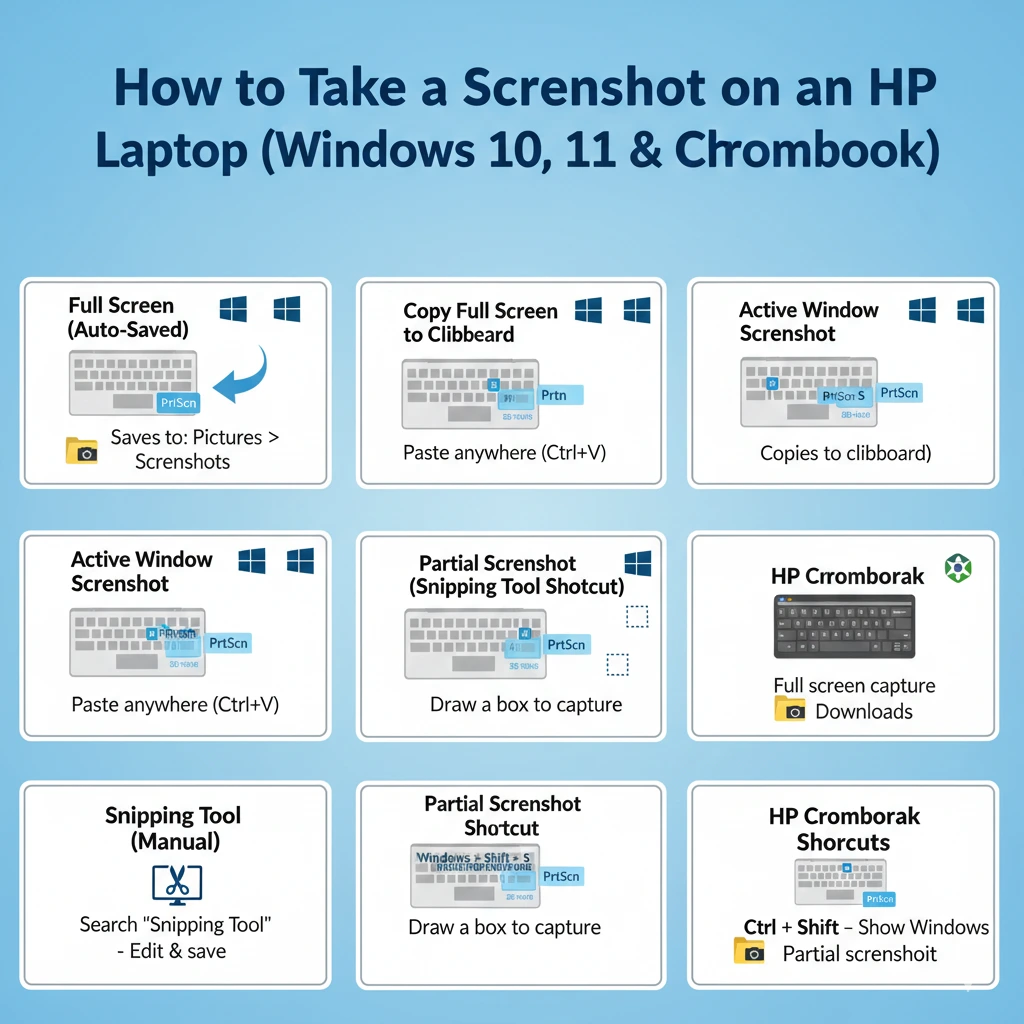
- Press Windows key + PrtScn
- Your screen briefly dims
- Screenshot saves automatically
Saved Location:
Pictures → Screenshots
Important HP Laptop Tip:
On many HP models (Pavilion, Envy, Spectre), the Print Screen function is shared with another key.
You may need to press:
Fn + Windows + PrtScn
Works on Windows 10 & Windows 11
Ideal for beginners and everyday users
Copy Full Screen Screenshot to Clipboard
Best for:
Pasting screenshots directly into emails, documents, chat apps, or image editors.
Steps:
- Press PrtScn
- Open Paint, Word, Gmail, WhatsApp Web, etc.
- Press Ctrl + V
Capture Only the Active Window
Best for:
Capturing a single app or window without background clutter.
Steps:
- Click the window you want
- Press Alt + PrtScn
- Paste using Ctrl + V
Ideal Use-Cases:
- Error pop-ups
- Software tutorials
- Browser tabs
- App-specific screenshots
Partial Screenshot
Best for:
Capturing Specific areas, regions, or selected sections.
Steps:
- Press Windows + Shift + S
- Screen darkens
- Choose capture mode:
- Rectangle
- Freeform
- Window
- Full screen
- Screenshot copies to the clipboard
- Save manually if needed
Most flexible screenshot option
Available on Windows 10 & Windows 11
Using Built-In Windows Screenshot Tools
Keyboard shortcuts are fast — but built-in Windows tools offer greater precision, control, and editing power.
Snipping Tool
The Snipping Tool is Microsoft’s official screenshot application.
How to Open:
- Press Windows + S
- Type Snipping Tool
- Open the app
Screenshot Modes:
- Rectangular Snip
- Freeform Snip
- Window Snip
- Full-Screen Snip
Key Features:
- Delay timer
- Pen and highlighter tools
- Cropping and annotation
- Touchscreen support
- Save, copy, or share instantly
Best For:
Students, teachers, bloggers, content creators, IT support staff, and documentation professionals.
Xbox Game Bar
Best for:
Games, full-screen apps, and software demos.
Steps:
- Press Windows + G
- Click the Camera icon
- Screenshot saves instantly
Default Screenshot Save Locations
| Screenshot Method | Save Location |
| Windows + PrtScn | Pictures → Screenshots |
| Snipping Tool | Manual save |
| Win + Shift + S | Clipboard |
| PrtScn / Alt + PrtScn | Clipboard |
| Xbox Game Bar | Videos → Captures |
OneDrive Screenshot Issue
If OneDrive is enabled, Windows may automatically redirect screenshots to:
OneDrive → Pictures → Screenshots
Many users think screenshots disappeared — but they’re actually stored in OneDrive.
HP Keyboard Variations
| HP Model | Print Screen Method |
| HP Pavilion | PrtScn or Fn + PrtScn |
| HP Envy | Fn + Right Shift |
| HP Spectre | Fn + Shift |
| HP EliteBook | Dedicated PrtScn |
Advanced Screenshot Tools
Built-in tools are enough for most users.
Power users may prefer additional features.
Screenshot Tools Comparison
| Tool | Best For | Key Features | Cost |
| Lightshot | Quick edits | Arrows, text | Free |
| Greenshot | Annotation | Open-source | Free |
| ShareX | Power users | Automation, uploads | Free |
Install third-party tools only if necessary.
Pros & Cons of Screenshot Methods on HP Laptops
Pros
- Fast and convenient
- No additional software required
- Works across HP models
- Built-in editing options
Cons
- Clipboard-only methods confuse beginners
- Print Screen placement varies
- OneDrive changes save paths
- Chromebook shortcuts differ entirely
Troubleshooting: Screenshot Not Working on HP Laptop
Print Screen Key Not Working
Fixes:
- Try Fn + PrtScn
- Use Windows + Shift + S
- Check keyboard settings
- Restart Windows Explorer
Screenshots Not Saving Automatically
Fixes:
- Use Windows + PrtScn
- Check OneDrive sync settings
- Verify Pictures folder permissions
Snipping Tool Not Opening
Fixes:
- Update Windows
- Reset Snipping Tool
- Use Win + Shift + S
Practical Screenshot Use-Cases
Screenshots are essential for:
- IT support tickets
- Online education
- Blogging and tutorials
- Saving receipts
- Bug reporting
- Remote collaboration
Visual proof improves clarity and reduces miscommunication.
FAQs
A: Only Windows + PrtScn auto-saves screenshots.
A: Yes. Use Windows + Shift + S or Snipping Tool.
A: Yes. ChromeOS uses different shortcuts.
A: Yes. Use Snipping Tool, Paint, or third-party apps.
Final Verdict
Windows + Shift + S → Best flexibility
Windows + PrtScn → Best for auto-saved screenshots
Combined with the Snipping Tool, these Methods handle 99% of screenshot needs in 2026 — no extra software required.











