Introduction
Lenovo Laptop Restore to Factory, an efficient machine that you first unboxed. Whether you own a versatile IdeaPad for everyday tasks, a flexible Yoga 2-in-1 convertible, a durable ThinkPad for professional work, or a high-performance Legion gaming rig, this comprehensive 2026 guide delivers every straightforward technique you need.
This detailed resource explains simple procedures for typical scenarios, situations where you’ve forgotten your login credentials, and even cases where the operating system fails to launch properly. You’ll discover secure data preservation strategies, the renowned Novo Button approach, creation and utilization of bootable recovery media, techniques to enhance speed after restoration, common issue resolutions, and tailored recommendations for specific Lenovo series. Everything uses clear, accessible language that beginners and experienced users alike can easily follow.
Many individuals look up instructions for restoring their Lenovo devices because the system has become unresponsive, displays persistent faults, or they plan to transfer ownership. This all-encompassing article compiles all necessary information in a single location, refreshed for 2026. It avoids complicated terminology and provides vivid mental imagery of each process along with practical, effective solutions.
Why Perform a Factory Reset on Your Lenovo Laptop?
As months and years pass, portable computers Accumulate unnecessary clutter. Cached temporary data, outdated programs, potential security threats, and numerous processes running invisibly in the background contribute to reduced responsiveness. A complete restoration erases these burdens and restores the original swiftness and smoothness you experienced initially.
Frequent motivations for performing this procedure include:
- Noticeable decline in operating speed after one to three years of regular use
- Frequent application failures or temporary freezes
- Repeated occurrences of the Blue Screen of Death (BSOD)
- Suspected malicious software or continued sluggishness despite cleanup efforts
- Inability to recall the account access code
- Intention to transfer or dispose of the device
- Preparation ahead of major system upgrades or new application installations
Lenovo products typically react exceptionally positively to restorations thanks to their integrated recovery mechanisms. These often automatically reinstall original device drivers and several beneficial proprietary applications.
When restoration surpasses standard troubleshooting:
- Conventional diagnostic procedures like System File Checker commands or security scans prove insufficient
- Performance remains disappointing even after removing unwanted files
- Error messages recur persistently
- Getting the device ready for a different user
Helpful Suggestion: If your portable computer exhibits physical component malfunctions and remains covered by active guarantee protection, reach out to Lenovo assistance beforehand. Restoration could potentially conceal useful diagnostic details needed for service claims.
Preparation: Critical Actions Before Restoration
Always complete these steps first. A full reset eliminates nearly all stored information.
Safeguard Your Valuable Information
- Duplicate images, recordings, text files, and other documents onto removable storage like USB flash drives or external hard drives
- Utilize online storage services such as OneDrive, Google Drive, or Dropbox for redundancy.
- Launch the Lenovo Vantage program and explore its dedicated preservation feature.s
- Export web browser favorites and saved credentials (consider password managers like Bitwarden)
- Record activation codes for productivity suites like Microsoft Office or entertainment titles
For devices that refuse to start: Employ a secondary machine to generate emergency bootable media using reliable free utilities such as Macrium Reflect. This allows data retrieval even in challenging situations.
Collect Necessary Items
- Precise device identifier and manufacturing code (usually found on the underside label)
- Power adapter firmly connected
- Credentials for your Microsoft account
- Unfolded paper clip or similar slim tool for activating the Novo pinhole
Ensure Stable Electricity Supply
Maintain the power adapter connected throughout and verify the internal battery holds at least 50% charge. Interruptions from power loss mid-process can lead to complications or incomplete operations.
Restoration Directly from the Windows Interface
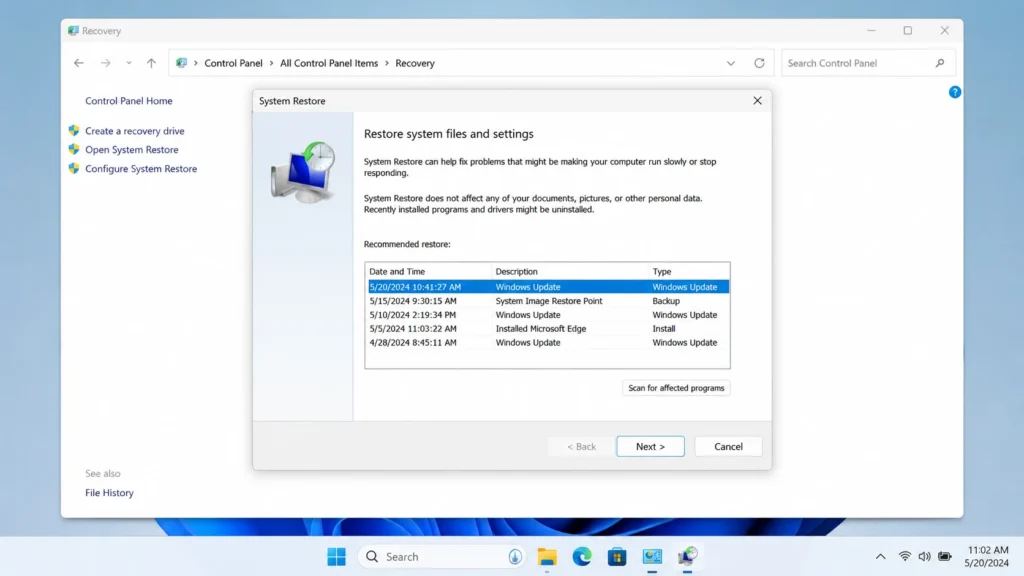
This represents the most user-friendly option when the desktop environment loads normally.
For Windows 11 (Updated 2026 Procedures):
- Activate the Start menu → select the gear-shaped Settings icon.
- Navigate to the System category → select Recovery.
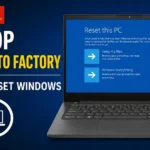
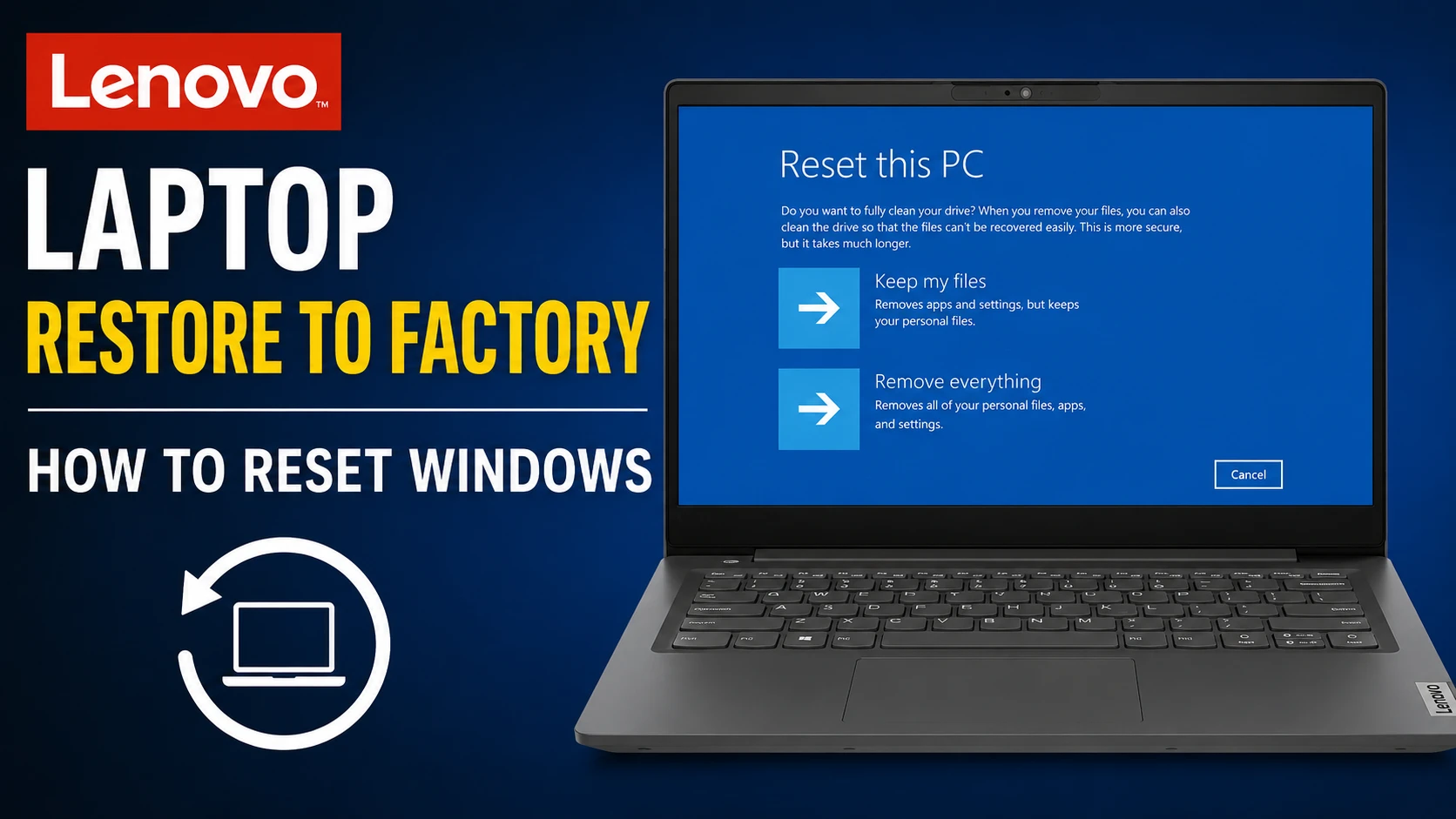
- Activate the “Reset this PC” option.
- Decide between:
- Retain personal documents (eliminates programs but preserves your files)
- Eliminate all content (comprehensive cleanup — recommended for thorough results)
- Select Cloud-based retrieval (downloads current Windows components) or Local reinstallation.
- Determine the depth of drive sanitization.
- Confirm and allow the process to run. Expect multiple automatic restarts.
Employing the Novo Button – Lenovo’s Preferred Technique
This stands as the most dependable option for Lenovo machines. It functions reliably even when the main operating system becomes unresponsive.
Detailed Procedure:
- Completely power down the device.
- Locate the Novo Button — typically a tiny recessed switch or opening close to the power control (often marked with a curved arrow symbol).
- Insert a paperclip to press and maintain the Novo Button while the unit remains powered off.
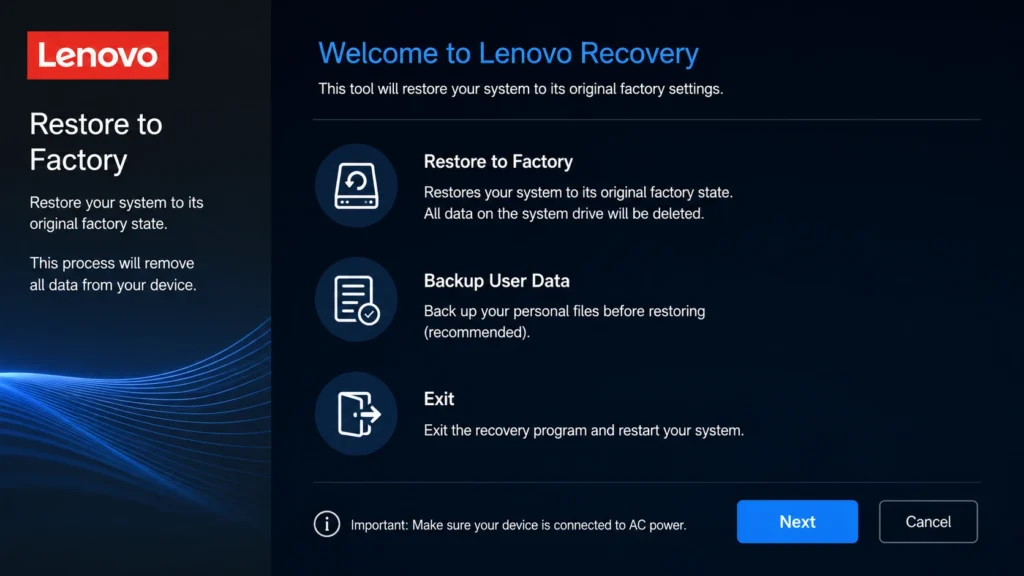
- The specialized Novo interface will load — choose System Recovery.
- Proceed to Troubleshoot → Reset this PC.
- Select your preferred option for file handling.
- Adhere to the subsequent on-screen directions.
Variations Across Product Lines:
- IdeaPad Series: The Novo Button operates seamlessly in most cases.
- Yoga / Flex Convertibles: Experiment with the Power switch combined with Volume Up control.
- ThinkPad Business Line: Rely more frequently on the F11 key during boot or the standard Windows repair environment.
- Legion Gaming Models: Prioritize saving progress from Steam, Epic Games Store, and personalized configurations beforehand.
This technique taps into the concealed recovery storage area and reinstates numerous factory-original configurations and preferences.
Restoring a Lenovo Laptop Without an Access Code
Remain calm if the password is forgotten. Multiple pathways still exist.
Trigger Automatic Diagnostic Mode
- On the sign-in display, press and hold the power control to enforce shutdown. Perform these two to three times consecutively.
- The system should enter the automated repair environment.
- Navigate through Advanced options → Troubleshoot → Reset this PC → Eliminate all content.
Novo Button Approach
Utilize the previously detailed Novo procedure — it bypasses the sign-in requirement entirely.
Bootable Recovery Media
Generate this on a functional secondary computer and initiate booting from it.
Generating and Utilizing a Bootable Recovery Drive
Ideal when the built-in recovery storage area is corrupted or absent.
- On a functional machine, access the official Lenovo assistance portal and input your unique serial identifier.
- Alternatively, employ Microsoft’s Media Creation utility to prepare a pristine Windows image.
- Produce bootable removable media.
- Connect it to the target Lenovo device, activate F12 boot selection, or the Novo interface.
- Choose the removable drive and proceed with the installation assistant.
Comprehensive Comparison of Available Restoration Techniques
| Technique | Requires Login? | Functions Without Booting? | Reinstates Original Apps/Drivers? | Approximate Time | Optimal For |
| Windows Interface | Yes | No | Partial | 20-90 minutes | Simple cases with access |
| Novo Button | No | Yes | Frequently Yes | 30-120 minutes | Typical Lenovo scenarios |
| Forced Repair Mode | No | Yes | No | 45-90 minutes | Situations with forgotten credentials |
| Bootable Recovery USB | No | Yes | Variable | 60-180 minutes | Missing recovery partition |
Variations and Recommendations for Specific Lenovo Models
Each product family includes minor distinctions worth noting.
- IdeaPad Lineup: Depend primarily on the Novo Button for reliable access.
- Yoga Convertible Devices: Power button plus Volume controls frequently activate recovery options.
- ThinkPad Professional Series: Excellent for streamlined installations. Corporate users often favor reduced additional software.
- Legion Performance Gaming Systems: Carefully preserve game library data, cloud saves, and custom profiles.
- Legacy Models: Attempt pressing F11 repeatedly during the initial boot sequence.
For precise visuals and documentation, always consult the official Lenovo support resources using your exact model identifier.
Post-Restoration Enhancement: Achieve Superior Performance
Restoration marks only the beginning. Implement these steps to surpass previous capabilities:
- Complete the out-of-the-box configuration and establish internet connectivity.
- Perform full Windows updates.
- Acquire and launch Lenovo Vantage from the official store. Execute comprehensive system checks and component updates.
- Download the newest drivers from Lenovo’s portal (prioritize network adapter, core chipset, and display graphics).
- Restore your essential personal data selectively.
- Eliminate any remaining redundant applications.
- Check for and apply BIOS firmware updates for improved reliability.
- Fine-tune energy management profiles for optimal battery duration.
Users frequently report quicker startup sequences, enhanced fluidity, and extended battery endurance following these optimizations.
Resolving Typical Restoration Challenges
- Process Freezes or Hangs: Maintain a consistent power supply. Consider switching to cloud retrieval over the local method.
- Cannot Locate Novo Button: Fall back to standard Windows repair environment or removable media approach.
- Missing Components After Completion: Install the connectivity driver initially to enable Vantage to handle the remaining updates.
- Reset Error Message Appears: Access Command Prompt within advanced recovery tools.
- Encryption Key Prompt (BitLocker): Retrieve it through your online Microsoft account dashboard.
Advantages and Disadvantages of Lenovo Laptop Restoration

Advantages:
- Completely eradicates malicious software and accumulated clutter
- Restores original responsiveness and efficiency
- Ideal preparation when selling or donating the device
- Cost-free and straightforward using native utilities
- Addresses numerous software-related symptoms that mimic hardware faults
Disadvantages:
- Irrevocable data loss without prior preservation
- Requires time investment for reconfiguration and updates
- Necessitates re-establishing all preferences
- Ineffective against genuine physical component defects
FAQs
Q1: Does a factory reset remove viruses?
A: Yes, selecting the comprehensive “Remove everything” option eradicates the vast majority of malware infections by wiping the storage partitions clean.
Q2: How long does the process take?
A: Typically, between 30 minutes and 3 hours, influenced by storage capacity, chosen method, and network speeds for cloud downloads.
Q3: Will I lose my Windows license?
A: No. The operating system activation remains linked to the device’s hardware identifiers.
Q4: What is the difference between Reset and Clean Install?
A: The built-in reset procedure offers greater simplicity and often preserves select Lenovo-specific customizations and utilities. A manual clean installation provides a more minimal environment but demands additional configuration effort afterward.
Conclusion
Performing a factory reset remains one of the most effective methods to rejuvenate your Lenovo portable computer. Whether you prefer the intuitive Settings interface, the robust Novo Button mechanism, or a custom recovery USB Drive, you now possess complete knowledge to proceed confidently.
Always prioritize thorough data protection, execute each step methodically, leverage Lenovo Vantage for ongoing maintenance, and savor the renewed responsiveness. Should performance issues persist even after a pristine restoration and full updates, the root cause may involve physical hardware — in which case, professional support from Lenovo is advisable.
This extensive guide received its latest revision in May 2026. For your particular device variant, cross-reference with official resources and manuals.