Introduction
Few tech issues feel as instantly Frustrating—and alarming—as powering on your HP laptop only to face a completely black screen.
No logo.
Loading animation.
No response.
Just silence… and uncertainty.
What makes this issue even more confusing is that your laptop may still be running. You might hear the fan spinning, notice keyboard lights glowing, or even hear Windows startup sounds—yet the display remains completely black.
In 2026, this problem is more common than ever due to:
- Frequent Windows updates
- Advanced hybrid graphics systems (Intel + NVIDIA/AMD)
- Aggressive power-saving features like Fast Startup
Explanation
Whether you’re a student attending online classes, a remote worker handling critical files, or a gamer using a high-performance HP machine, a black screen can completely halt your productivity.
Affected HP models include:
- Pavilion
- Envy
- ProBook
- EliteBook
- Spectre
- Victus
- Omen
- Legacy HP devices
Here’s the truth most guides won’t tell you:
And if you don’t diagnose it correctly, you’ll waste time on random fixes that don’t work.
You’ll learn:
- What your black screen actually means
- How to diagnose the issue step-by-step
- Proven HP-specific fixes (including BIOS recovery)
- When hardware repair is unavoidable
- How to prevent this issue permanently
Let’s fix your HP laptop the right way.
Windows Updates & Driver Conflicts (NEW)
In 2026, one of the fastest-growing causes of HP black screen issues is Windows automatic driver replacement.
Microsoft now frequently pushes GPU drivers through Windows Update, which can:
- Override stable HP-certified drivers
- Break hybrid GPU switching
- Causes black screens after reboot
Practical Fix:
- Pause Windows updates temporarily
- Install drivers from HP’s official support page
- Use Device Manager → “Roll Back Driver” if the issue starts after the update
Real-world cases show this resolves black screen issues in under 10 minutes.
In This Complete HP Black Screen Guide, You Will Learn:
- What a black screen actually means
- How to differentiate software issues from hardware failures
- Beginner-friendly to advanced troubleshooting steps
- HP-exclusive BIOS and firmware recovery methods
- When professional repair is unavoidable
- How to permanently prevent HP black screen problems
This guide is written in simple, human language — clear enough for a teenager — yet detailed enough for technicians.
What “Screen Goes Black on HP Laptop” Really Means
Common HP Laptop Black Screen Scenarios
| Situation | What It Usually Indicates |
| Black screen on power-on | BIOS, power, or motherboard issue |
| Black screen after login | Graphics driver or Windows failure |
| Black screen with cursor | OS shell or system file corruption |
| Screen goes black randomly | Overheating, GPU instability, and power issues |
| Black screen after sleep | Fast Startup or wake failure |
| External monitor works | Internal display, cable, or backlight problem |
Power, Battery & Electrical State Problems
An unstable or incomplete power cycle can prevent the display from initializing.
Common Power-Related Triggers
- Faulty charger or damaged adapter
- Weak or degraded battery
- Residual static electricity
- Power IC reset failure
Typical Symptoms
- The laptop turns on, but the screen stays black
- Screen flashes briefly, then turns off
- The laptop only works when plugged in
Power issues are often ignored — yet they are among the easiest problems to fix.
Graphics Driver Corruption
This is the #1 reason an HP laptop screen goes black after Windows loads.
Why This Happens
- Windows Update installs incompatible drivers
- Failed Intel, NVIDIA, or AMD GPU updates
- Corrupted display driver files
- Hybrid graphics switching errors
Clear Warning Signs
- The screen goes black after login
- You hear System sounds but see nothing
- Mouse cursor visible on a black screen
If Safe Mode works, this is almost always the cause.
Fast Startup & Sleep Mode Conflicts
Fast Startup is designed to speed boot time — but often breaks display wake-up.
What Goes Wrong
- Windows saves a hybrid boot state
- Display fails to reinitialize
- The screen remains black after sleep or shutdown
Warning Indicators
- The screen flickers when moving the lid
- Display works only at certain angles
- External monitor displays normally
BIOS or Firmware Corruption
This is a physical connection issue, not software.
Common Causes
- Interrupted BIOS update
- Power loss during firmware flashing
- Outdated BIOS incompatible with OS updates
BIOS corruption is serious — but HP provides built-in recovery tools.
Overheating or Hardware Failure
To protect internal components, HP laptops may disable the display.
Possible Hardware Failures
- GPU thermal damage
- LCD backlight failure
- Display panel degradation
- Motherboard faults
These issues usually develop after prolonged heat exposure.
Quick First-Aid Fixes
Before advanced troubleshooting, start here.
Perform a Hard Reset
This clears residual electrical charge.
Steps
- Shut down the laptop
- Disconnect charger
- Remove battery (if removable)
- Hold the power button for 20 seconds
- Reconnect charger
- Power on
This fixes many HP black screen cases instantly.
External Monitor Test
Connect your HP laptop to:
- HDMI TV
- External monitor
Results
- External display works → Internal screen or cable issue
- External display fails → Software, GPU, or BIOS issue
Toggle Display Output
Press (varies by model):
- Fn + F4
- Fn + F5
- Fn + F8
Sometimes Windows outputs to a nonexistent display.
Disable Fast Startup
Path:
Control Panel → Power Options → Choose what power buttons do
Uncheck Fast Startup.
Software-Level Fixes
If hardware checks pass, software is usually responsible.
Boot into Safe Mode
Safe Mode loads only essential drivers.
How
Force shutdown during boot 2–3 times → Windows Recovery
Troubleshoot → Advanced → Startup Settings
The screen works in Safe Mode; the driver is confirmed faulty.
Update or Roll Back Graphics Drivers
Device Manager → Display Adapters
Actions:
- Update driver
- Roll back the driver
Always use HP-validated drivers, not generic ones.
System Restore
System Restore rolls Windows back to a stable state.
Fixes
- Failed updates
- Corrupted drivers
- Registry damage
One of the most powerful fixes available.
Most guides skip this. They shouldn’t.
HP Emergency BIOS Recovery
Works even with a black screen.
Steps
- Power off
- Hold Windows + B
- Press the power for 1 second
- Keep holding keys for ~40 seconds
If successful, the BIOS recovery screen appears.
When BIOS Recovery Doesn’t Work
Possible reasons:
- Physical motherboard damage
- Corrupted BIOS chip
- Unsupported downgrade attempt
At this stage, repair is likely required.
Hardware Checks
Reseat RAM Modules
Loose RAM can cause no display.
Inspect Display Cable
Check hinge area for:
- Frayed cable
- Loose connector
- Burn marks
Backlight Failure Test
Shine the flashlight on the screen:
- Faint image visible → Backlight failure
- No image → Panel or GPU issue
Special HP Black Screen Scenarios Explained
Black Screen With Cursor Only
Usually caused by:
- Corrupted Windows shell
- Driver conflict
Fix Path: Safe Mode → Driver repair → System Restore
Black Screen After Sleep
Caused by:
- Fast Startup
- Power settings
- GPU wake failure
Fix: Disable sleep + update GPU driver.
Random Black Screen While Working
Linked to:
- Overheating
- GPU instability
- Power fluctuations
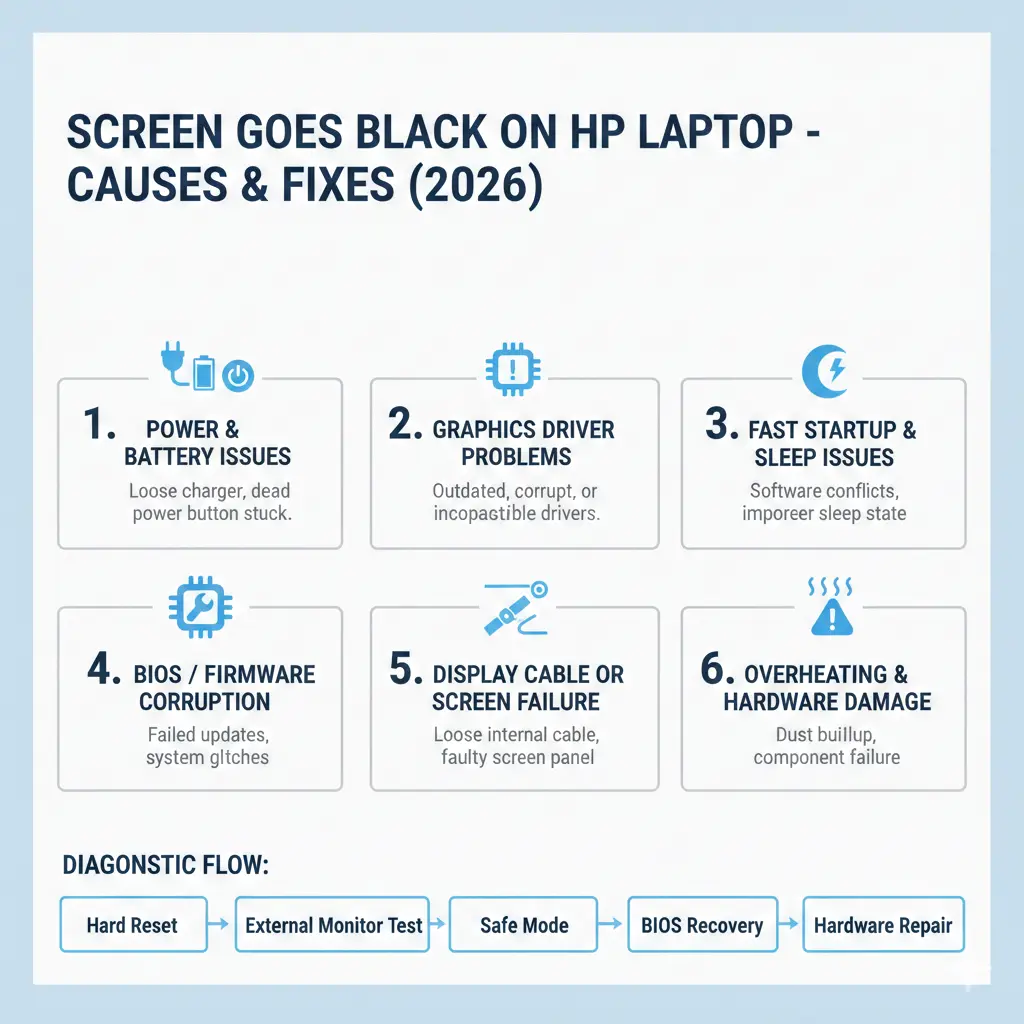
HP Laptop Black Screen Troubleshooting Flow
| Step | Test | Outcome |
| 1 | Hard reset | Clears power glitches |
| 2 | External display | Isolates screen vs system |
| 3 | Safe Mode | Confirms driver issue |
| 4 | BIOS recovery | Fixes firmware |
| 5 | Hardware test | Confirms physical failure |
Pros & Cons of DIY Fixing
Pros
- Saves money
- Immediate results
- Improves technical skills
Cons
- Risk of damage
- BIOS flashing risk
- Not all issues are fixable
When You Should Get Professional Help
Seek repair if:
- The screen remains black after BIOS recovery
- The external display also fails
- Physical damage exists
- The laptop overheats quickly
Likely causes:
- LCD failure
- GPU damage
- Motherboard fault
How to Prevent HP Laptop Black Screen Issues Permanently
- Keep GPU drivers updated
- Avoid forced shutdowns
- Update BIOS only from official HP sources
- Use cooling pads
- Disable Fast Startup
Hybrid GPU Systems Causing Black Screens (NEW)
Modern HP laptops (especially Omen, Victus, Spectre) use hybrid graphics (Intel + NVIDIA/AMD).
While powerful, this setup often causes:
- Display switching failure
- Black screen during GPU handoff
- Issues after sleep or gaming
Fix Approach:
- Update both GPUs (not just one)
- Disable hybrid graphics in BIOS (advanced users)
- Use HP Command Center (if available)
FAQ
A: Usually a display driver, BIOS, or backlight issue.
A: Yes. Most cases are software-related.
A: No. BIOS reset does not affect files.
Conclusion
A “screen goes black on HP Laptop” issue may feel like a complete system failure—but in reality, it’s usually fixable.
In most real-world cases, the root cause comes down to:
- Graphics driver conflicts
- Power configuration errors
- BIOS or firmware glitches
By following a structured diagnostic approach—starting from simple fixes and moving toward advanced solutions—you can:
Identify the exact cause
Fix the issue safely
Avoid unnecessary repair costsMost importantly, understanding why the problem happens gives you the power to prevent it in the future.