Introduction
A sudden drop in speed, unusual behavior, or persistent error messages may indicate that a fresh start is needed. How to factory reset my Lenovo laptop. When laptops act up – sluggish performance, glitches, strange pop-ups – a full reset often helps more than anything else. Some turn to wiping everything clean after noticing slowdowns tied to too many apps installed over time. Problems caused by hidden infections sometimes vanish only once the machine returns to its original state. People hunting for steps to Reset Lenovo computers usually face deep software trouble that they cannot fix any other way.
Slowly, clutter builds up – cached data, hidden tasks, old software, mismatched settings. This mess chips away at speed and reliability bit by bit. Starting fresh on a Lenovo wipes the OS entirely, then loads Windows anew, making it run like day one again.
So clearing everything wipes out bugs that built up over time. It tosses the apps you added along the way. Your files, settings, and anything saved go too. The OS restarts clean, like it just woke up.
Explanation
Truth is, most online guides cover just a single way to reset – typically using the Windows settings. Yet when it comes to Lenovo machines, multiple paths exist for getting things back on track, depending on what’s gone wrong.
For example:
- Starting up fine? Try resetting through Windows Settings instead.
- When Windows won’t start, try the Novo Button option instead. Or go straight into WinRE if that makes more sense at the moment.
- When system files suffer major damage, a Windows reinstallation through USB might be necessary. Missing recovery partitions can lead to the same outcome. Sometimes, fixes just aren’t possible without fresh installation tools on hand.
Finding your way through these methods matters since some fixes fail where others succeed.
Start here if your Lenovo needs a fresh start. No matter the model – ThinkPad, IdeaPad, Yoga, or Legion – you’ll find a method that works. Each option brings things back like new, minus the guesswork. Pick what fits your situation once you see all paths laid out. Safety and speed shape every suggestion listed below.
Once you finish reading, it becomes obvious what this is about
- Which factory reset method to use in different situations
- How to restore a Lenovo laptop safely and correctly
- How to reset a laptop without a Windows password
- How to solve common reset issues
- How to prepare your laptop before performing a reset
What Is a Factory Reset on a Lenovo Laptop?
Starting fresh means wiping everything personal off the machine. Out go your files, along with any programs added after purchase. The computer rebuilds Windows just like it came from the maker. Everything resets – exactly how it was on day one.
Starting over clears everything stored on the device, replacing it with a clean version of the software that runs it.
Once the reset finishes, it runs much like fresh hardware – factory preferences restored, clutter gone. A different rhythm takes over, one shaped by untouched configurations and silent background processes. Like waking up without memory, everything feels unfamiliar yet smooth. The system hums quietly under new rules, stripped of old habits. Settings return to zero point, programs line up as if never used. Each startup step follows a cleaner path, unseen before on this machine.
When serious problems pop up, starting fresh might help. Stubborn infections sometimes vanish after a wipe. Reselling your gadget? A clean slate could be wise. Wiping it down works before passing it on.
What Happens During a Factory Reset
| System Component | What Happens |
| Windows OS | Reinstalled |
| Installed programs | Removed |
| Personal files | Deleted (unless keeping files option is selected) |
| System settings | Reset to default configuration |
| Drivers | Reinstalled automatically |
Midway through, the OS swaps out damaged files while resetting setup options, along with returning Windows to its original state.
This is why resetting the device might fix various issues tied to software.
Factory Reset vs Normal Reset
A factory reset goes further, even if the names seem alike. A regular reset doesn’t reach as deep.
| Feature | Factory Reset | Normal Reset |
| Removes installed programs | Yes | Sometimes |
| Reinstalls Windows | Yes | Optional |
| Restores original configuration | Yes | No |
| Fixes serious system issues | Yes | Limited |
Most times, a simple restart just clears temporary glitches without touching your apps or preferences. But when you go back to the original setup, everything gets wiped clean.
This makes it a top choice when fixing laptop problems.
When Should You Restore a Lenovo Laptop to Factory Settings?
A fresh start might be exactly what your Lenovo laptop needs in certain situations. Sometimes, wiping it clean works better than anything else. When glitches pile up, a full reset can sort things out quickly. Problems that stick around often disappear after restoring original settings. Certain issues respond well only to this kind of deep cleanup. For some troubles, nothing short of a complete wipe makes a real difference.
Severe System Slowdowns
When a laptop takes ages to start up, suddenly locks during work, or can’t handle everyday apps without lagging, chances are that too many hidden processes are running. Scattered pieces of data across the drive might also be slowing things down behind the scenes.
Slowly, apps pile up along with leftover temp data and forgotten background tasks. Bit by bit, those extras drag the system down. Files stack while silent processes keep running. Little things add weight until performance dips. Old setups linger long after they’re needed. Hidden clutter eats speed without warning. Each added program leaves traces behind. Gradually, responsiveness slips away.
A fresh start wipes out extra apps and sweeps away the mess. Performance finds its rhythm again when the system reboots cleanly.
Malware or Virus Infection
A few harmful tools hide far within the system core, slipping past standard virus scanners. Removal often fails because they latch onto essential processes too tightly.
When things get like this, starting fresh usually wipes out sneaky problems most reliably.
Fresh installation of Windows wipes out corrupted files, replacing them with clean ones. A stable setup emerges when old glitches vanish, leaving room for reliability.
Preparing to Sell or Give Away Your Laptop
Before passing your laptop to someone else – whether selling, donating, or handing it off – a reset wipes your private data for good. It leaves nothing behind by clearing everything out ahead of time. That way, what was yours stays gone. The machine returns to a blank state, ready for its next user without traces. Your photos, files, and settings – all erased through the process.
A factory reset erases:
- Personal documents
- Login credentials
- Saved passwords
- Browsing history
- User accounts
Keeping things private happens when access stays blocked. What you share remains safe because entry is denied to others. Security kicks in by shutting out unwanted viewers. Your information rests easier behind closed doors. Locked pathways stop strangers from stepping through.
Persistent Windows Errors
Errors pop up now and then on Windows, like:
- Failed updates
- System crashes
- Blue screen errors
- Missing system files
Faulty system files often spark these issues, though mismatched programs can trigger them too. Sometimes it’s not about damage but a poor fit between tools running together.
Starting fresh on the laptop swaps out broken files, bringing things back to working order. A clean setup steps in where glitches took hold, nudging performance upward again.
Software Conflicts
When extra programs pile up, clashes between them start to happen.
A fight over memory can happen when apps run at the same time. One software might slow down another just by working.
Starting fresh wipes out every app you added, leaving only the core system behind. Conflicts vanish when everything resets to zero. The machine runs just like it did on day one – no extras, no glitches.
Important Things to Do Before Resetting
Start by saving any files you cannot afford to lose – better safe than sorry. That old photo folder? Copy it somewhere else first. Imagine starting fresh without those documents; not ideal, right? The setup might stall if the power dips, so plug in the charger. Surprise crashes happen when batteries run low mid-process. Software licenses often vanish after resets; write them down now. Even small oversights can cause Headaches later. Think through each step before hitting confirm.
Backup Your Files
When resetting a device, some choices could wipe stored photos or documents entirely. Which path you pick changes what stays or goes.
Bearing that in mind, save copies of key information – things like
- Documents
- Photos
- Videos
- Music
- Browser bookmarks
- Application settings
You can store backups using:
- External hard drives
- USB flash drives
- Cloud storage services
If something goes wrong during the reset, having a copy of your data means those key files are still safe. A fresh start does not have to mean starting completely over when backups exist.
Connect the Power Adapter
Fifty minutes might pass before the screen lights up again, sometimes less – speed hinges on whether the machine is older or fresh out of storage. A factory-style wipe drags longer than a quick reformat, especially if parts inside aren’t top-tier.
A sudden power loss while resetting could damage the OS setup. When electricity cuts out mid-process, the software might fail to install properly.
Throughout the reset, leave the laptop plugged into the power source. Power stays linked during the entire process. The cord remains attached till it finishes. Connected to electricity the whole time, never disconnected mid-reset.
Know Your Windows Version
Most Lenovo laptops currently run:
- Windows 10
- Windows 11
Starting fresh works much the same way across both setups, yet wording in menus can shift a bit here and there. Getting around might feel familiar at first, though each system takes its own small detours when guiding you through options.
Your OS version tells you which steps fit what you’re doing. The right path depends on knowing that detail.
Understand Your Reset Options
A fresh start on a Windows machine usually comes with a couple of paths. One route wipes everything clean. Another keeps your files but resets settings. Each path changes how the system behaves afterward. Most people pick based on what they want to keep.
| Option | Description |
| Keep My Files | Removes apps but keeps personal files |
| Remove Everything | Complete factory reset |
When resetting your device completely, top reviewers often suggest picking Remove Everything – this option tends to deliver stronger protection along with smoother operation afterward. Starting fresh like this clears more clutter than simpler methods might leave behind.
Methods to Restore a Lenovo Laptop to Factory Settings
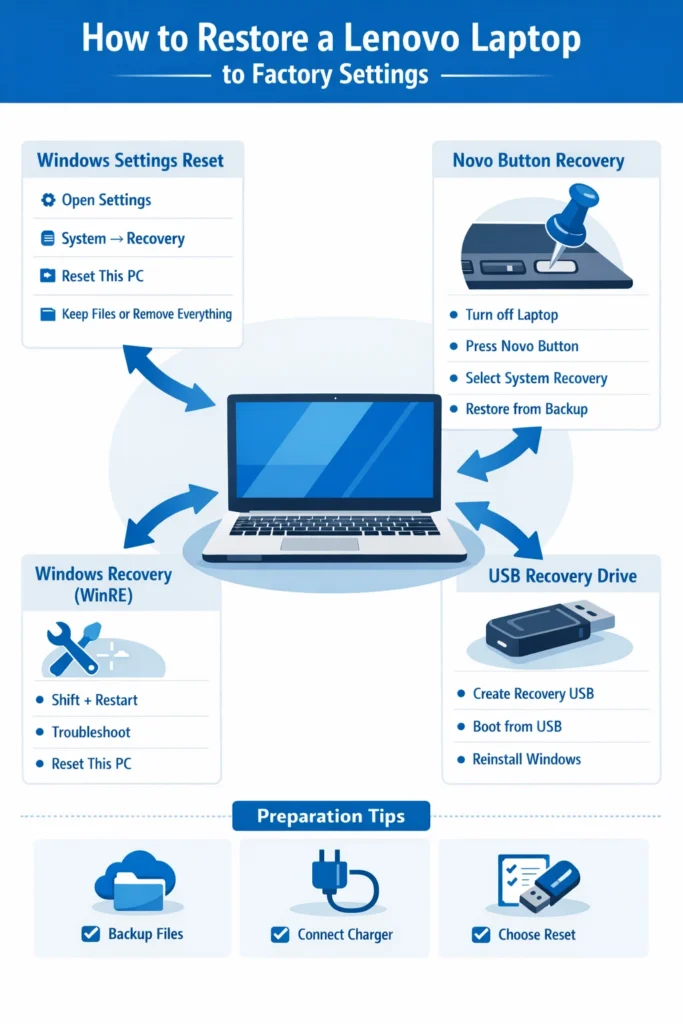
Four methods handle resetting a Lenovo laptop. One uses the built-in recovery tools found under system settings. Another pulls from a USB drive loaded with factory software. A third triggers when holding specific keys during startup. The last comes through Windows troubleshooting options after boot failure.
| Method | Best For |
| Windows Reset | Laptop working normally |
| Novo Button / OneKey Recovery | Quick Lenovo recovery |
| Windows Recovery Environment | Windows not booting |
| USB Recovery Media | System severely damaged |
One way fits here, another there. Sometimes this approach helps, sometimes that one does instead. What matters changes depending on the situation around it.
Restore Lenovo Laptop Using Windows Settings
Starting fresh on a Lenovo laptop often means using this approach. It resets everything back to how it was when first bought. Most people find their way here because it works without extra steps. The process runs straight through, leaving little room for errors. Done right, it brings the system back to its original state.
Fine operation continues if the system runs without issues.
Step-by-Step Instructions
- Click the Start Menu
- Open Settings
- Select System
- Click Recovery
- Under Reset this PC, click Reset PC
- Choose one of the following options:
- Keep my files
- Remove everything
- Select installation method:
- Cloud download
- Local reinstall
- Follow the on-screen instructions
Once started, Windows begins putting the operating system back in place.
Windows Reset Options Comparison
| Option | Best For | Internet Required |
| Cloud Download | Fresh Windows copy | Yes |
| Local Reinstall | Faster reset | No |
Advantages
- Very simple process
- Right inside Windows, it comes already there
- No external tools required
Limitations
Funny thing – this way actually needs Windows starting up without issues.
When the system fails to boot, try a different way to recover it.
Restore Lenovo Laptop Using Novo Button / OneKey Recovery
Inside lots of Lenovo machines hides a small tool named the Novo Button. This hidden helper kicks in when things go sideways with the system.
This tool launches Lenovo’s proprietary recovery system.
What Is the Novo Button?
A tiny reset trigger sits close to the power key, sometimes along the edge of the machine. This piece helps restart system functions when needed.
If the laptop is turned off, pressing it brings up a unique Lenovo recovery screen.
Starting fresh becomes possible through this option, especially if Windows fails to boot up. Though the system crashes, resetting still works without delays. Even when stuck at a blank screen, recovery stays within reach using this method. When nothing else loads properly, it brings back the original settings step by step.
Steps to Use the Novo Button
- Shut down the machine entirely
- Locate the Novo Button
- A small metal object, such as a clip, works well here. Try using something thin instead of your fingers. A pin could do the job just fine. This method keeps things steady without extra tools. Sometimes, household items are enough
- Select System Recovery
- Go ahead with restoring from the first backup
- Just do what the screen tells you to do
Fresh start loading on the machine now. System reverts to how it first shipped, step by step unfolding. Original setup returns without shortcuts taken. Everything resets just like day one appeared.
When This Method Is Best
| Scenario | Recommendation |
| Windows not loading | Use Novo recovery |
| System corrupted | Use OneKey Recovery |
| Quick factory restore | Best option |
Restore Lenovo Laptop Using Windows Recovery Environment (WinRE)
Should the laptop fail to start Windows, a reset remains possible through the Windows Recovery Environment (WinRE).
Finding your way back starts here, with a collection of powerful fixes ready when you need them. Tools appear one by one, built to handle tough glitches without slowing down.
Steps to Enter WinRE
- The screen lights up when the laptop powers on
- Click Restart while pressing Shift
- Select Troubleshoot
- Start over with your PC by choosing the reset option instead of updating it manually
- Pick the reset method you like best
After that, the system begins setting up Windows again.
Recovery Menu Options
| Option | Function |
| Startup Repair | Fix boot problems |
| Reset This PC | Reinstall Windows |
| Advanced Options | Access recovery tools |
Restore Lenovo Laptop Using USB Recovery Media
When things go wrong, the system recovery section could vanish. Sometimes it gets broken instead of lost. A glitch might erase it. Other times, damage keeps it from working right.
If things go wrong, a fresh Windows install through USB recovery tools will fix it.
Steps to Create a Recovery USB
- Download recovery media from the Lenovo support website
- Slide in a USB stick that holds at least 16 gigabytes. Sometimes it clicks into place with a soft snap
- Create the recovery drive
- Restart the laptop
- Boot from the USB device
- Follow the installation instructions
When USB Recovery Is Needed
| Situation | Solution |
| Reset option missing | Use USB recovery |
| Recovery partition deleted | USB required |
| Hard drive replaced | USB reinstall |
How to Restore a Lenovo Laptop to Factory Settings Without a Password
Forgetting a login password stops plenty of people from getting into Windows.
Funny thing is, resetting the machine remains an option.
Use Novo Button
Pressing the Novo Button skips straight past Windows sign-in.
A fresh start might happen even if you skip typing the password. Instead of needing that code, another path opens up – clearing everything back to how it began.
Use Windows Recovery Environment
- Turn on the laptop
- Start things wrong on purpose, twice more after that. Each time, stop what begins. Three separate halts break the sequence entirely.
- Windows will open Advanced Startup
- Select Troubleshoot
- Click Reset this PC
A fresh start becomes possible even when access is blocked. Without signing in, the system can still be wiped clean. Though locked out, a full reset stays within reach. Even without Credentials, restoration works just fine.
Troubleshooting Lenovo Factory Reset Problems
Faults pop up now and then when resetting. Different glitches show up at odd times through the steps.
Problems pop up more than others. When one shows, a fix often follows close behind.
Reset Option Missing
Cause
When something goes wrong with the system, that hidden section could already be gone. A glitch might have wiped it out without warning.
Solution
Use a USB recovery drive to reinstall Windows.
Reset Failed or Stuck
Possible Reasons
- Corrupted Windows files
- Disk errors
- Insufficient storage space
Fixes
- Run disk check
- Use cloud reinstall
- Reset through WinRE
Laptop Stuck on “Undoing Changes”
Frequently, this happens when someone stops the reset before it finishes.
Fix
Fresh start the machine, then go through the reset once more by way of Windows Recovery Environment.
Lenovo Model-Specific Factory Reset Tips
Different Lenovo laptop series may have slightly different recovery options.
ThinkPad
Built tough, ThinkPad machines target professionals first. Yet they fit others, too – durability matters everywhere. Work drives their design more than flash. Keyboards favor speed under pressure. Not flashy. Just steady through long days.
Frequently, these come equipped with strong protection features along with options for restoring business systems. Though not always obvious, their backup functions can handle major data setbacks across large organizations.
IdeaPad
Folks who need a laptop for regular tasks might find the IdeaPad fits just right.
They commonly include:
- Novo Button recovery
- OneKey Recovery
Legion
Fueled by raw power, Legion laptops tackle games without slowing down.
Once restarted, installation might happen again
- Gaming drivers
- Performance optimization tools
Model Comparison
| Series | Reset Method | Recovery Feature |
| ThinkPad | Windows Reset | Advanced recovery |
| IdeaPad | Novo Button | OneKey Recovery |
| Legion | WinRE | Gaming drivers reinstall |
Pros and Cons of Factory Resetting a Lenovo Laptop
Knowing what happens when you reset helps weigh the good sides against drawbacks. Sometimes things work better after, sometimes they get messy. Each step forward might bring relief or fresh problems. Not every outcome lines up neatly ahead of time.
Pros
Fixes major software problems
Removes malware and viruses
Restores system speed and responsiveness
Clears personal data before resale
Cons
Deletes installed applications
Removes personal files
Requires reinstalling software
The reset process may take time.
Expert Tips for a Safe Lenovo Factory Reset
To ensure a smooth and successful reset process, follow these expert recommendations:
- Always create backups of important files
- Keep the power adapter connected during the reset
- Choose Remove Everything for the cleanest installation
- Start fresh by picking Remove Everything to get the simplest setup going
- Once the reset finishes, go ahead and refresh Windows
- Install drivers from the Lenovo support website
Stability at its peak comes from walking through each step carefully. Performance climbs when every detail gets attention. Skipping pieces risks the whole effort falling apart. Doing it right means everything holds together longer.
FAQs
A: A factory reset typically takes 30 minutes to 1 hour, depending on the laptop’s hardware speed and the selected reset method.
A: Yes. A complete factory reset reinstalls Windows, which removes most malware and viruses.
A: Yes. Choose Keep My Files during the reset process.
However, installed applications will still be removed.
A: Yes. Windows is automatically reinstalled during the factory reset process.
A: If the reset fails, you can use:
Windows Recovery Environment
USB recovery media
These methods allow you to reinstall Windows manually.
Conclusion
Finding your way back to a clean start on a Lenovo laptop matters more than most realize. Resetting it like this opens up space where clutter once lived. One step at a time, everything returns just as it was when first powered on. Knowing this process brings quiet confidence when things feel stuck. It wipes the slate without needing outside help. This kind of fix runs deep, yet stays within reach.
A fresh start might be what your device needs if it runs sluggishly, acts strange from malware, or crashes often due to glitches. Resetting it completely wipes everything back to how it was when first turned on. That kind of clean slate tends to clear out deep-rooted hiccups, slowing things down. Sometimes old clutter builds up without notice, weighing performance heavily. Returning settings and apps to their original state stops recurring issues cold. It strips away layers added over time that cause conflicts underneath.
Lenovo laptops offer multiple reset methods, including:
- Windows Reset
- Novo Button recovery
- Windows Recovery Environment
- USB recovery media
It really comes down to whether Windows works at all or refuses to start.
Most people find it simplest to reset their PC using the built-in Windows options. When the system won’t boot, though, solutionssuchasNovo Button recovery orWinRE stepineffectively.
Before performing any reset, always remember to:
- Backup important files
- Connect the power adapter
- Pick the reset mode that fits your needs
A fresh start might be what your Lenovo needs. This guide walks through each step carefully, so everything resets just right. With patience plus attention, the machine runs like it did when new. Following along means smoother operation returns without surprise glitches. Resetting becomes simple when done this way.