Introduction
A Black Screen on an HP laptop is one of the most frustrating problems any user can face. You press the power button, the fans start spinning, indicator lights turn on, and even the keyboard may light up—but the screen stays completely black. In 2026, with more advanced HP laptops using hybrid GPUs, fast SSD boot systems, and Windows 11/12-style updates, black screen issues have become even more complex—but also more fixable than ever before.
For students, freelancers, gamers, and remote workers, this issue can instantly stop productivity. It often feels like the laptop is dead, but in reality, many cases are caused by software glitches, display driver failures, BIOS conflicts, or power initialization errors, not permanent hardware damage. The good news? Most HP black screen problems can be fixed at home without expensive repairs—if diagnosed correctly. This expert guide walks you through a step-by-step troubleshooting system, helping you identify whether your issue is software-related or hardware-related and apply the right fix safely.
Most HP laptops with a screen aren’t broken.
In some cases, the issue is with the software, like corrupted files, conflicting drivers, power problems, or display settings that are wrong. These are easy to fix at home.
- Beginners understand what’s actually happening behind the scenes
- Advanced users pinpoint the exact failure stage
- Everyone avoids unnecessary repairs and wasted money
- The fixes are pretty simple. We will go through them one by one.
- From just resetting your laptop to recovering the BIOS and checking the hardware.
Why HP Laptop Screen Goes Black
Before trying fixes, it’s crucial to figure out why your HP laptop screen is not showing anything. Guessing can be frustrating and a waste of time. Might even cause permanent damage.
An HP laptop screen going black usually falls into one of two categories:
- Software issues ( common and easy to fix)
- Hardware issues ( serious and need repair)
Knowing which category your problem falls into is key to fixing it successfully.
Software Issues
When it’s a software problem, the laptop turns on as usual,l and the operating system might even be running in the background. But the display is not showing anything.
Common software-related causes include:
- Corrupted, incompatible, or outdated graphics drivers
- Failed or incomplete Windows updates
- Fast Startup conflicts are interfering with display initialization
- Explorer.exe is failing to launch
- Startup application conflicts
- Incorrect display output or projection settings
- Malware infections or damaged system files
Key signs of software-based black screen issues:
- Keyboard backlight turns on
- The cooling fan operates normally
- Caps Lock or Num Lock responds when pressed
- You may hear Windows startup sounds
- A mouse cursor sometimes appears on a black background
These indicators strongly suggest that your HP laptop is still alive and functional, but the display pipeline between the GPU, OS, and screen has failed.
Hardware-Related Causes
Hardware-related issues typically prevent any image from displaying—even before Windows begins loading.
Common hardware causes include:
- Failed or damaged LCD panel
- Backlight or inverter failure
- Loose, pinched, or torn eDP display cable
- Improperly seated or faulty RAM modules
- Dedicated or integrated GPU failure
- Motherboard-level damage
- Liquid spills or physical impact damage
Key signs of hardware-based black screen problems:
- No HP logo during startup
- No BIOS or UEFI screen
- An external monitor may or may not show output
- The laptop appears powered, but gives no visual feedback
These cases require a structured diagnosis before considering repair or replacement.
Identify Your HP Black Screen Type (CRITICAL STEP)
Applying the wrong solution to the wrong black screen variant wastes time and can worsen the issue. Identification always comes first.
HP Black Screen Diagnostic Table
| Symptom | What It Means | Likely Cause |
| Black screen but lights on | OS loaded, display not rendering | Driver or Windows issue |
| Black screen with cursor | Explorer not loading | Software conflict |
| Black screen after update | Update corruption | Windows or GPU driver |
| Black screen on startup | Boot failure | BIOS or hardware |
| External monitor works | Internal display issue | LCD cable or panel |
| No BIOS display | Hardware failure | RAM or motherboard |
Match your symptoms exactly before moving forward.
Perform a Power Cycle
A hard reset clears the residual electrical charge stored in capacitors, which can block proper screen initialization.
Steps:
- Shut down the laptop completely
- Disconnect the charger
- Remove the battery (if removable)
- Hold the Power button for 20–30 seconds
- Reconnect the charger (battery optional)
- Power the laptop back on
Effective for fixing:
- The laptop screen is black, but it powers on
- Black screen after sleep or hibernation
- Display not waking properly
Test with an External Monitor
This single test instantly separates internal display faults from system-wide failures.
How to test:
- Connect an HDMI or DisplayPort monitor
- Power on the laptop
- Use display toggle keys (Fn + F4 / F5 / F8, model-dependent)
Results interpretation:
- External monitor works → Internal screen, cable, or backlight issue
- External monitor is also black → GPU, RAM, BIOS, or motherboard issue
Brightness & LED Behavior Check
In some cases, the screen is technically “on” but appears black due to brightness or backlight failure.
Check the following:
- Increase brightness using function keys
- Observe Caps Lock / Num Lock indicators
- Listen for the Windows startup sound
Software Fixes (Most Successful Solutions)
Over 70% of HP black screen cases are resolved using the following software-level solutions.
Boot HP Laptop into Safe Mode
Safe Mode loads Windows using only essential drivers.
Steps:
- Power on the laptop
- Force shutdown during boot (repeat 3 times)
- Enter Windows Recovery Environment (WinRE)
- Troubleshoot → Advanced Options
- Startup Settings → Enable Safe Mode
If the display works in Safe Mode, a driver conflict is confirmed.
Fix or Reinstall Graphics Drivers (MOST IMPORTANT)
Graphics driver corruption is the #1 cause of HP black screen problems.
Correct approach:
- Roll back recently updated drivers
- Uninstall the display adapter from Device Manager
- Install the official driver from HP Support
- Avoid third-party driver update tools
This step alone fixes the majority of cases.
Disable Fast Startup (Very Effective)
Fast Startup often prevents proper screen initialization after shutdown.
Path:
Control Panel → Power Options → Choose what power buttons do → Disable Fast Startup
System Restore (After Update Black Screen)
If the issue appeared after a Windows update:
- Enter WinRE
- Choose System Restore
- Select a restore point before the issue
Advanced Fixes
Proceed only if the previous steps fail.
HP Emergency BIOS Recovery
This process restores corrupted BIOS firmware.
Steps:
- Power off the laptop
- Hold Windows + B
- Press Power for 1 second
- Release Power, keep holding Win + B
Can revive laptops showing no display at all.
Reseat or Test RAM Modules
Improper RAM seating can completely block video output.
Steps:
- Power off and unplug
- Open the bottom panel
- Reseat RAM sticks
- Test one module at a time
Inspect LCD Display Cable
Attempt only if:
- The laptop is out of warranty
- External display works
- You are comfortable opening laptops
A loose eDP cable is common after drops or pressure damage.
When It’s a Hardware Failure (Repair Required)
If nothing displays—not even BIOS—the issue is hardware-based.
Possible faults include:
- Dead LCD panel
- Backlight failure
- GPU damage
- Motherboard malfunction
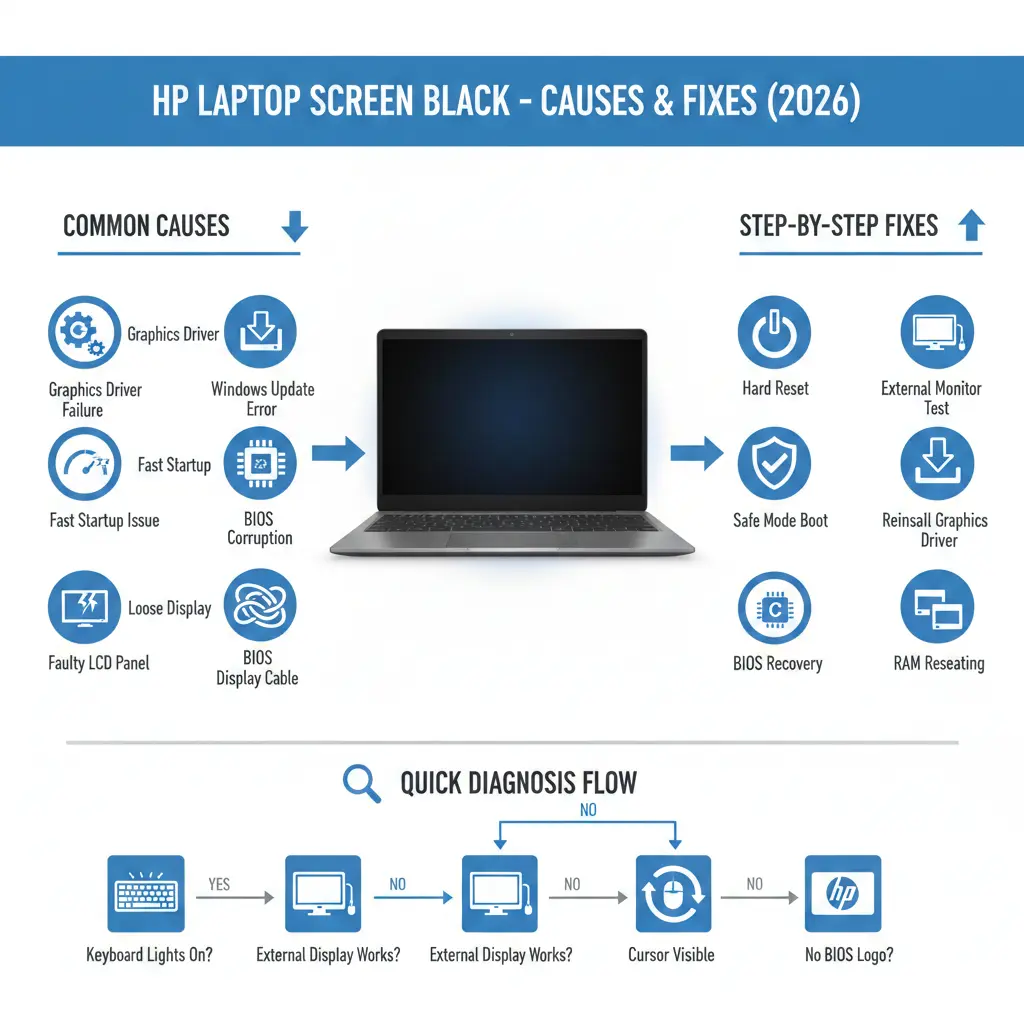
HP Black Screen Troubleshooting Flowchart
| Situation | Diagnosis | Best Fix |
| Lights on, black screen | Driver issue | Safe Mode + reinstall |
| Cursor only | Explorer crash | Restart Explorer |
| External display works | LCD problem | Cable or panel |
| No BIOS display | Hardware | RAM or board |
| After update | OS corruption | Restore |
Pros & Cons of DIY Fixing HP Black Screen
Pros
- Saves repair costs
- Faster resolution
- Preserves data
Cons
- Risk if inexperienced
- Hardware fixes may void the warranty
- Requires patience
Modern Standby & Hybrid GPU Issues
A growing number of HP laptops in 2026 face Modern Standby black screen bugs, especially after sleep mode. This happens due to improper GPU wake signals between Intel integrated graphics and NVIDIA/AMD discrete GPUs.
Additionally, OLED and high-refresh displays in newer HP models sometimes fail to reinitialize after fast boot cycles. Updating BIOS and chipset drivers from HP’s official support page often resolves these issues.
FAQs
A: Usually caused by corrupted graphics drivers or display output errors.
A: Explorer.exe isn’t loading. Restart it or reinstall GPU drivers.
A: Roll back the update or use System Restore.
Conclusion
An HP laptop black screen issue may look serious, but in most cases it is not a permanent hardware failure. Instead, it is usually caused by driver conflicts, Windows update errors, display initialization issues, or BIOS glitches.
By following a structured troubleshooting process—starting from simple power resets and Safe Mode diagnostics to advanced BIOS and hardware checks—you can accurately identify the real cause without wasting money on unnecessary repairs.
In 2026, many black screen issues are linked to hybrid GPU systems and Modern Windows power modes, making proper diagnosis more important than ever.
Start simple, proceed step-by-step, and only move to hardware repair when necessary. In most cases, your HP laptop can be restored fully without replacing major components.
If this guide helped, consider bookmarking it for future troubleshooting or sharing it with others facing the same issue.