Introduction
The HP Omnibook Laptops Stuck In Tablet Mode are really good at giving you an experience when you use them. You can easily switch between using them like a laptop and using them like a tablet. This is great for students and professionals, and people who like to make art and music.
The HP Omnibook 2-in-1 laptops are small and easy to carry around. They have touchscreens. They work really well. All of these things are combined into one device, which is really convenient. The HP Omnibook 2-in-1 laptops are perfect for people who want to use their laptops in various ways.
Explanation
When these parts do not talk to Windows the way Windows thinks the computer is still being used like a tablet, even if it is not. This happens because Windows gets the information from the HP OmniBook X Flip and the AI-powered Omnibooks, and the newer AMD-based 2-in-1 computers.
- Oversized taskbar icons
- Missing keyboard functionality
- Auto-rotation issues
- Touch-optimized UI elements
- Reduced productivity
In this in-depth expert guide, you will learn:
- Why your HP Omnibook gets stuck in tablet mode
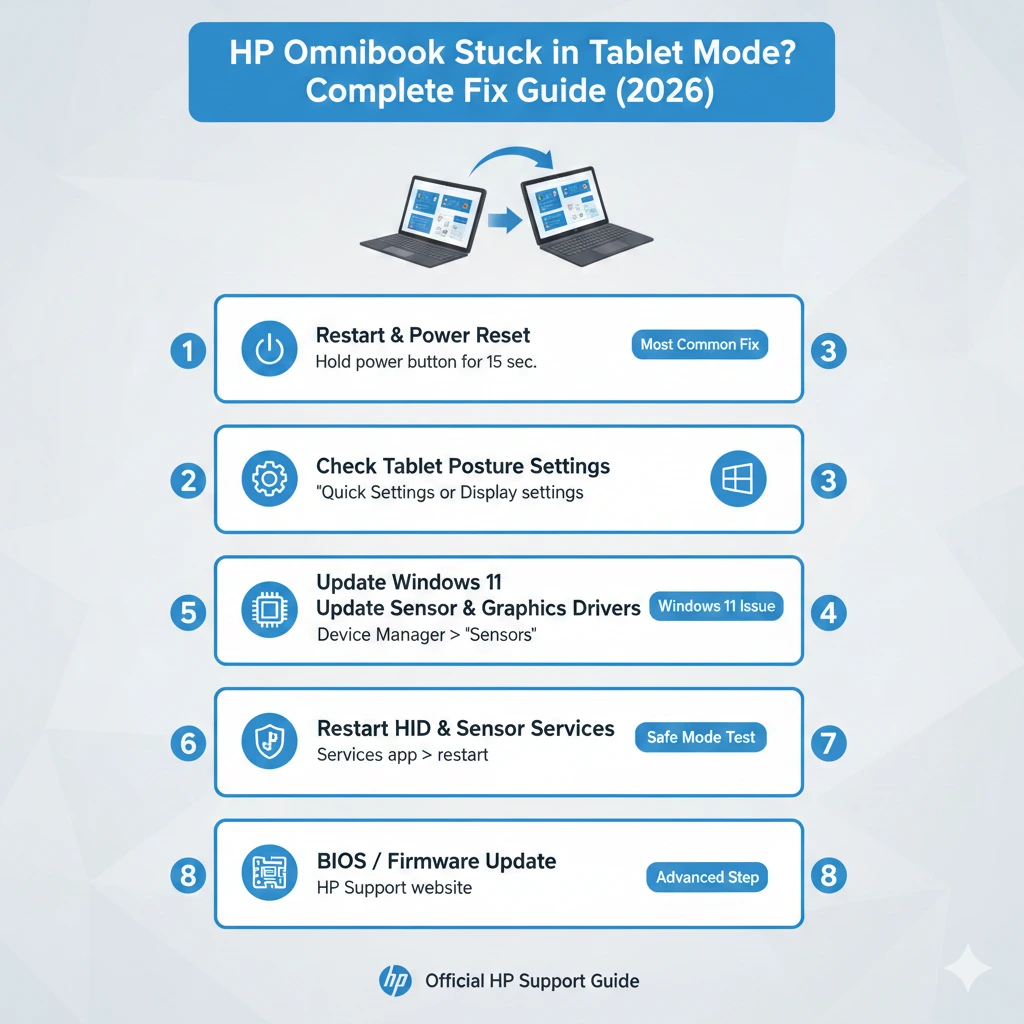
- Step-by-step fixes from basic to advanced
- Sensor, HID, and graphics driver solutions
- Windows 11 posture behavior troubleshooting
- BIOS and firmware update guidance
- When it’s time to contact HP Support
This guide is written for both beginners and advanced users, using clear instructions, real-world troubleshooting logic, and safe recovery methods to restore your HP Omnibook to full laptop functionality.
Why HP Omnibook Gets Stuck in Tablet Mode
Modern HP Omnibook laptops rely on a complex interaction between hardware sensors, firmware logic, drivers, and Windows services to determine whether the device is being used as a laptop or a tablet. When that ecosystem breaks—even slightly—Windows 11 may misinterpret the device posture.
Faulty or Outdated Sensor Drivers
HP Omnibooks use HID Sensor Collection drivers to detect orientation, hinge position, and rotation. If these drivers are outdated, corrupted, or incompatible with recent Windows updates, the system may incorrectly report the device as faulty.
- Device remains touch-optimized
- Keyboard appears disabled
- Auto-rotate stops working
Rotation Lock Conflicts
Rotation Lock is designed to prevent unwanted screen rotation, but when enabled unintentionally, it can block posture changes and lock the interface in tablet mode—even when the device is unfolded.
Windows 11 Update Bugs
Windows 11 feature updates and cumulative patches sometimes introduce temporary sensor bugs, especially on 2-in-1 devices. Several users have reported tablet mode problems immediately after installing new updates.
Corrupted or Incompatible Graphics Drivers
On models such as the HP OmniBook X Flip, especially those running AMD Radeon graphics, corrupted or outdated GPU drivers can interfere with orientation detection and UI behavior.
HID Sensor Collection Miscommunication
If Windows misreads data from the accelerometer or gyroscope, it may believe the laptop is folded backwards—even when it’s not.
Touch-Optimized Taskbar & UI Settings
Windows 11 includes adaptive UI features that automatically enlarge taskbar icons and spacing when tablet posture is detected. Sometimes, these settings remain active due to a configuration glitch, making it appear as though tablet mode is “stuck.”
Restart Your HP Omnibook
A proper shutdown resets embedded controllers, sensors, and system states.
- Save all open files
- Shut down the laptop completely
- Disconnect the charger
- Wait 15–20 seconds
- Power the device back on
Check Tablet Posture Behavior Settings
Windows 11 replaces the tablet mode toggle with posture-based automation.
- Open Settings
- Go to System → Multitasking
- Locate Tablet posture behavior
- Select Don’t switch to tablet mode
Disable Rotation Lock
Rotation Lock can prevent Windows from recognizing posture changes.
Method A — Action Center
- Press Windows + A
- Click Rotation Lock to turn it OFF
- Fold and unfold the device to test
Method B — Settings
- Go to Settings → System → Display
- Ensure Rotation Lock is disabled
Update Windows & System Components
Microsoft often releases silent fixes for sensor and posture bugs.
- Open Settings → Windows Update
- Click Check for updates
- Install all available updates
- Restart the system
Many tablet mode issues resolve immediately after system updates.
Update HP Sensor & Graphics Drivers
Update Sensor Drivers
- Press Win + X → Device Manager
- Expand Sensors or System Devices
- Right-click HID Sensor Collection
- Select Update driver
- Choose Search automatically
Date Graphics Drivers (AMD / Intel)
- Use HP Support Assistant (recommended)
- Or download drivers directly from HP’s official support site
Avoid installing generic drivers from third-party websites.
Restart Sensor & HID Services
Sometimes Windows services freeze in the background.
Steps:
- Press Win + R
- Type services.msc
- Restart the following:
- Sensor Monitoring Service
- Sensor Data Service
- Human Interface Device Service
This forces Windows to reinitialize posture detection.
Run Windows Hardware Troubleshooter
Steps:
- Open Settings → System → Troubleshoot
- Click Other troubleshooters
- Run Hardware and Devices
- Follow on-screen instructions
This tool detects driver conflicts and configuration errors.
Test in Safe Mode
Safe Mode disables third-party drivers and utilities.
Steps:
- Go to Settings → System → Recovery
- Select Advanced Startup → Restart now
- Choose Startup Settings → Safe Mode
Uninstall Recent Windows Updates
Some updates temporarily break sensor detection.
Steps:
- Go to Settings → Windows Update → Update History
- Click Uninstall updates
- Remove the most recent update
- Restart and test
Update BIOS / UEFI Firmware
Steps:
- Visit HP’s official support website
- Enter your Omnibook model
- Download the latest BIOS update
- Follow instructions carefully
Common User Symptoms & Explanations
| Symptom | Possible Cause | Fix |
| Taskbar looks oversized | Touch-optimized taskbar | Disable “Optimize taskbar for touch.” |
| Auto-rotate fails | Rotation lock or driver issue | Steps 3–6 |
| Random switching | Faulty sensors | Update drivers |
| Won’t exit tablet mode | Firmware conflict | BIOS update |
Advanced Tips
Disable Auto Tablet Mode Permanently
- Settings → System → Multitasking
- Set tablet behavior to Never auto-switch
Check Third-Party Utilities
Display rotation apps, screen managers, or OEM tools may override Windows posture detection. Temporarily uninstall to test.
When to Contact HP Support
If all steps fail, the issue may be hardware-related, such as a damaged hinge sensor.
Prepare:
- Model & serial number
- Troubleshooting steps attempted
- Photos or video evidence
- Approximate start date of the issue
This speeds up diagnosis and repair.
FAQ
A: No, Windows 11 uses automatic sensor-based switching.
A: Usually due to faulty posture sensors or outdated drivers.
A: Possibly, but driver and settings fixes should be tried first.
A: Yes, disabling it often resolves the issue.
A: OmniBook X Flip and AMD-based AI models are the most common.
Conclusion
An HP Omnibook stuck in tablet mode can be annoying—but it is rarely permanent.HP Omnibook Laptop stuck in Tablet Mode. By following a structured troubleshooting approach, most users can restore proper laptop behavior without professional repair.