Introduction
You press the power button on your HP Laptop.
The keyboard backlight turns on.
The cooling fan starts spinning.
Sometimes, you even hear the familiar “HP Laptop Is Black Screen ” Windows startup sound.
HP logo.
Loading animation.
No desktop.
Just a completely black screen staring back at you.
The Real Problem Isn’t the Black Screen
The real issue is bad advice.
Most online guides:
- Skip real diagnosis
- Mix hardware and software fixes randomly
- Tell users to update BIOS blindly
- Ignore data safety and risk levels
They rarely explain:
- Why does the screen go black
- Which fix works for which symptom
- When DIY is safe
- When stopping is the smartest decision
That’s exactly why this guide exists.
What You Will Learn in This Guide
By the end of this article, you will clearly understand:
- What an HP laptop’s black screen actually means
- All software, drivers, Windows, BIOS, power, and hardware cause
- Beginner-safe fixes that work in minutes
- Advanced solutions used by repair technicians
- The issue is 100% fixable at home
- When you must stop and seek professional repair
Your HP laptop screen is black, but power is on, or you see a black screen after Windows login; every real-world scenario is covered.
What Is the HP Laptop Black Screen Issue?
An HP laptop’s black screen occurs when the laptop powers on successfully but fails to display any visual output.
This distinction is extremely important:
It is not the same as a laptop that does not turn on
It does not always mean a broken screen
It does not automatically mean data loss
In most cases, the laptop is partially Functional, but the display initialization process fails at some stage during boot.
Common Black Screen Scenarios
Different symptoms point to different root causes. You may experience one or more of the following:
- Black screen immediately after pressing the power button
- The HP logo never appears
- Black screen after Windows login
- Mouse cursor visible, but no desktop
- The screen randomly goes black during use
- Black screen only when opening heavy apps or games
Important Distinction Table rect Fix
| Situation | What It Usually Indicates |
| No lights, no fan | Power failure |
| Lights on, fan running, black screen | Display or boot issue |
| External monitor works | Internal screen or cable problem |
| Safe Mode works | Software or driver conflict |
| BIOS never appears | Firmware or hardware failur |
Common Causes of HP Laptop Black Screen
Almost every HP laptop black screen problem falls into four main categories.
Let’s explain them clearly.
Software-Related Causes
The majority of HP black screen problems are software-based, not hardware failures.
Corrupted or Outdated Graphics Drivers
Graphics drivers act as the communication bridge between Windows and your display.
If the driver is:
- Corrupted
- Outdated
- Incompatible after a Windows update
Failed or Incomplete Windows Updates
In 2026, Windows updates are frequent and complex. A broken update can:
- Install a faulty display driver
- Interrupt system services
- Break startup components
Result: black screen after login or before the desktop loads.
Fast Startup Conflicts
Windows Fast Startup saves a partial system image during shutdown.
If that saved state is damaged, Windows reloads the same failure again, causing a repeating black screen loop.
Corrupted System Files
System files may fail due to:
- Sudden power loss
- Malware or adware
- Storage errors
Explorer or display services fail, Windows loads, but nothing appears on the screen.
Hardware & Firmware Causes
These problems are less common but require more caution.
Faulty or Improperly Seated RAM
RAM issues can stop:
- POST (Power-On Self-Test)
- Display initialization
GPU or Motherboard Failure
Seen mostly in:
- Older laptops
- Overheated systems
- Gaming machines
Common signs include:
- No external display
- No BIOS screen
- Sudden shutdowns before failure
BIOS Corruption
A failed or interrupted BIOS update can completely block display output.
Power & Boot Configuration Issues
Often ignored, but very real causes include:
- Residual static electricity
- Battery voltage instability
- Incorrect UEFI / Legacy boot mode
- USB or peripheral conflicts
Quick First-Check Fixes
Before touching software or hardware, always try these safe fixes
Hard Reset (Power Drain Method)
This clears residual electricity and resets power circuits.
Steps:
- Shut down the laptop
- Unplug the charger and all accessories
- Remove battery (if removable)
- Hold the Power button for 15–20 seconds
- Reconnect charger
- Turn on the laptop
Why it works:
It clears stuck power states that block display initialization.
External Display Test (Most Important Diagnosis)
This test tells you where the problem is.
Steps:
- Connect the laptop to a TV or monitor
- Power on the laptop
- Press Fn + F4 / F5 / F8 (varies by HP model)
Results Meaning:
| Result | Diagnosis |
| External display works | Internal screen or cable issue |
| No display anywhere | BIOS, GPU, or motherboard issue |
Software Troubleshooting
- Power on the laptop
- Force shut down during boot 3 times
- Windows Recovery appears
- Troubleshoot → Advanced Options → Startup Settings
- Restart
- Press 4 / F4
What Safe Mode Tells You:
| Outcome | Meaning |
| Display works | Driver or software issue |
| Still black | Hardware or BIOS problem |
Restart Graphics Driver
Press:
Ctrl + Win + Shift + B
A beep means the driver restarted.
Update, Roll Back, or Reinstall Graphics Drivers
- Boot into Safe Mode
- Open Device Manager
- Expand Display Adapters
- Right-click GPU
- Update / Roll Back / Uninstall
- Restart normally
Disable Fast Startup (Highly Recommended)
- Control Panel → Power Options
- Choose what power buttons do
- Change settings currently unavailable
- Uncheck Turn on Fast Startup
BIOS & Firmware-Level Fixes
HP Emergency BIOS Recovery
If BIOS corruption caused the issue:
Steps:
- Power off the laptop
- Hold Windows + B
- Press Power for 1 second
- Keep holding the keys for 10 seconds
BIOS Update
Update BIOS only if:
- External display works
- HP Support confirms compatibility
Never interrupt the BIOS update
Always use AC power
Advanced Hardware Troubleshooting
Proceed only if you’re comfortable opening laptops.
Reseat RAM Modules
- Power off and unplug
- Open the bottom panel
- Remove RAM sticks
- Clean gently
- Reinsert firmly
- Boot and test
Check Internal Display Cable
If the external display works but the laptop screen stays black, the display cable or panel is likely faulty.
Faulty Screen vs GPU Diagnosis Table
| Symptom | Likely Cause |
| External works, internal doesn’t | Screen or cable |
| No display anywhere | GPU or motherboard |
| Flicker then black | Panel failure |
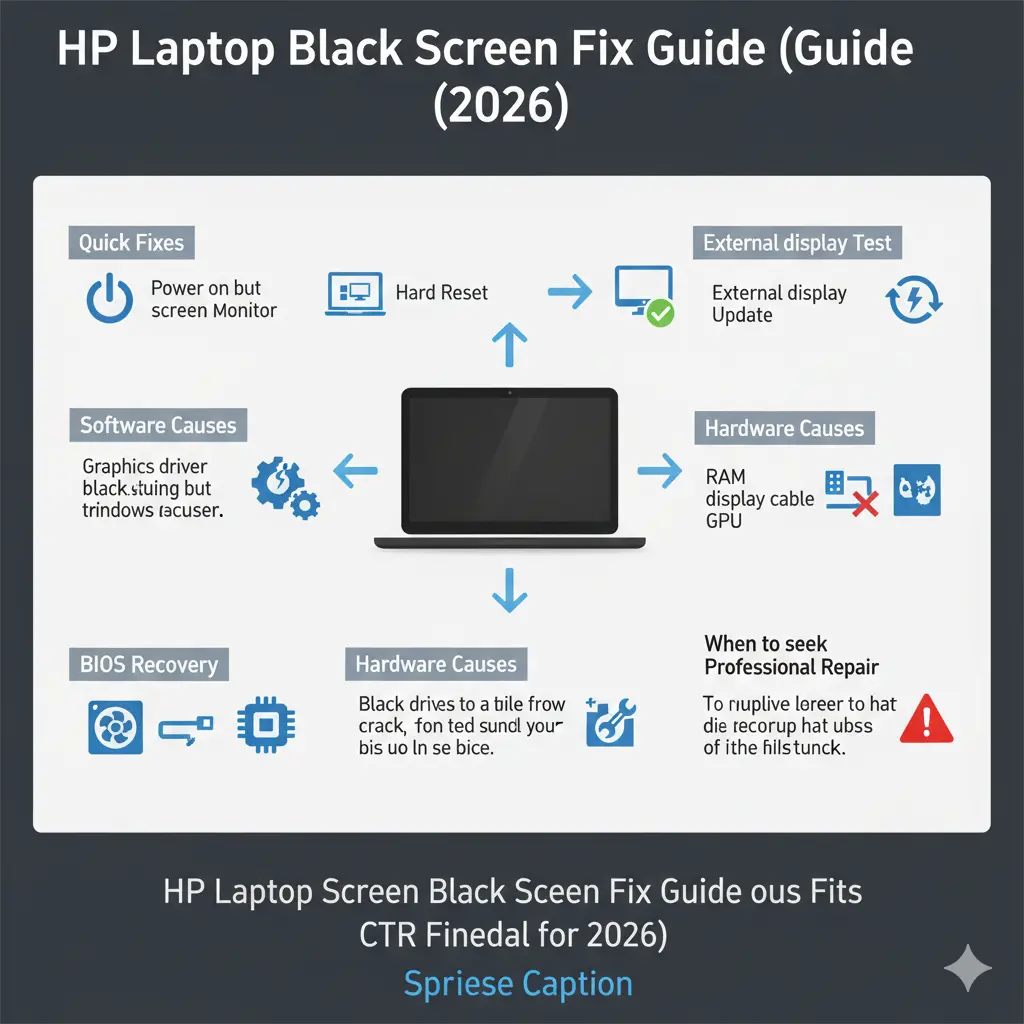
When to Seek Professional Repair
Stop DIY fixes if you notice:
- No external display
- No BIOS recovery
- No POST beeps or lights
- Burning smell or overheating
- Suspected motherboard failure
FAQs
A: Usually caused by graphics drivers, loose display cables, or BIOS problems.
A: Likely a driver or Windows conflict. Use Safe Mode or System Restore.
A: Yes. Unstable voltage can interrupt boot processes.
Final Verdict: Fix HP Laptop Black Screen the Smart Way
The HP laptop black-screen problem can look terrifying, but in most cases, it is completely fixable.
By following the correct order:
- Power reset
- External display test
- Safe Mode
- Driver repair
- BIOS recovery
- Hardware inspection
You avoid guesswork, damage, and data loss.
This guide was built to outperform competitors by combining:
- Real-world diagnosis
- HP-specific recovery logic
- Technician-level insight