Introduction
Switching on an HP Pavilion Laptop sounds simple—press a button and start working. How to switch On Hp Pavilion Laptop. But in 2026, that’s no longer the full picture.
Modern HP Pavilion laptops come with advanced power management systems, firmware-level protections, and multiple power states that can confuse even experienced users. What looks like a “dead laptop” is often just a misunderstood state—sleep mode, deep battery discharge, or a display issue.
Every month, thousands of users search for solutions like:
- Pavilion won’t turn on
- Power button not working
- Black screen after startup
- Laptop not starting even when plugged in
Here’s the truth: most of these issues are not serious hardware failures.
This guide is designed to eliminate confusion. Whether you’re using a Pavilion x360, a gaming model, or a standard Pavilion 15, you’ll learn exactly how to power on your device safely—and what to do when it doesn’t respond.
HP Pavilion Is a Family — Not a Single Laptop
The Pavilion lineup includes:
- Pavilion 14, 15, and 17 series
- Pavilion x360 (2-in-1 convertible laptops)
- Pavilion Gaming models
- Ultra-thin Pavilion notebooks with integrated power keys
Each category introduces differences in:
- Power Button placement
- Battery protection systems
- LED indicators
- Startup behavior
That’s why many users panic unnecessarily. In reality, the system is often:
- Stuck in sleep mode
- Locked in hibernation
- Delayed due to firmware initialization
- Facing a display-only issue (not power-related)
What This Ultimate Guide Covers
By the end, you will understand:
- What “switch on” actually means in modern laptops
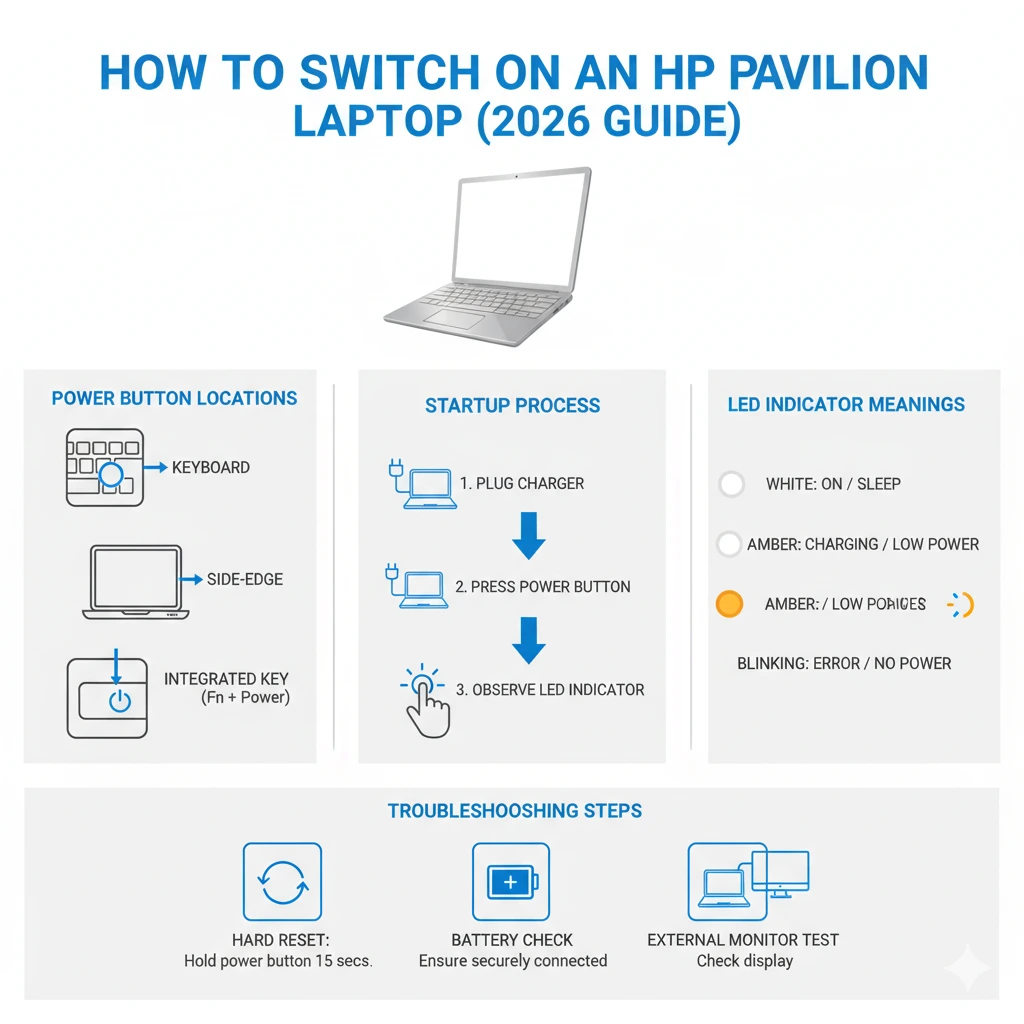
- Where to find the power button on any Pavilion model
- The safest startup method
- LED indicator meanings
- Why does nothing happen when pressing the power button
- Advanced fixes most guides ignore
- How to identify software vs hardware problems
What Does “Switch On” Really Mean?
Common HP Pavilion Power States
| Power State | What You See | What It Really Means | What To Do |
| Completely Off | No lights, no fan | Fully shut down | Press power once |
| Sleep Mode | Blinking LED | RAM-powered, system paused | Brief power press |
| Hibernation | No fan, resumes later | Session saved to disk | Press power once |
| Startup Failure | LEDs on, no display | BIOS or hardware issue | Troubleshoot |
| Black Screen | Fan running, no image | Display failure | External monitor test |
Where Is the Power Button on an HP Pavilion Laptop?
There is no universal location for the power button, which causes major confusion.
Keyboard Area Button
Found on: Pavilion 14 / 15 / 17
- Top-left or top-right
- Slightly raised
- Marked with ⏻
Easy to find
Easy to press accidentally
Side-Edge Button (x360 & Slim Models)
Seen on: Pavilion x360
- Located on the edges
- Very small and flush
- Often mistaken for volume buttons
Integrated Power Key (New Models)
- Built into the keyboard row
- Looks like a normal key
- Replaces Delete/Esc
Identify Your Exact Model
Check:
- Bottom sticker
- BIOS info
- Box or invoice
Knowing your model removes guesswork instantly.
The Correct Way to Switch On an HP Pavilion Laptop
Verify the Power Source (Critical First Step)
Before pressing the power:
- Use the original charger
- Plug into a wall outlet
- Avoid loose connections
HP Charging LED Meanings
| LED Color | Meaning |
| White / Green | Fully charged |
| Amber / Orange | Charging |
| Blinking Amber | Battery problem |
| No Light | Power issue |
Press the Power Button Properly
- Press once
- Hold for 2–3 seconds
- Release and wait
Avoid:
- Rapid pressing
- Long holding unless resetting
Open the Lid Fully (Important for x360)
Some models:
- Auto-wake when opened
- Delay display activation
Observe Carefully
Look for:
- Fan movement
- Keyboard lights
- HP logo
- LED activity
If the lights are on but there is no display → not a power issue
What If the HP Pavilion Laptop Does Not Turn On?
Hard Reset (Essential Fix)
Steps:
- Turn off the laptop
- Unplug charger
- Remove battery (if possible)
- Hold the power button for 15 seconds
- Reconnect and restart
Fixes:
- No response
- Static buildup
- Firmware glitches
Battery & Charging Diagnosis
Common causes:
- Deep discharge
- Faulty charger
- Old battery
What to Do:
- Charge 30–60 minutes
- Try another socket
- Test without battery
Important: Many laptops delay startup after a full discharge.
LED Blink Codes
| Blink Count | Problem |
| 2 Blinks | BIOS issue |
| 3 Blinks | RAM failure |
| 5 Blinks | Motherboard issue |
Smart Power Management in New Pavilion Models
Modern HP Pavilion laptops now include AI-based power optimization and thermal protection systems. This means your laptop may intentionally delay startup if:
- Battery voltage is unstable
- The temperature is too high
- Firmware is updating silently
In some cases, users mistake this delay for a failure. In reality, the system is protecting internal components. Waiting 20–40 seconds before retrying often resolves the issue without intervention.
Display vs Power Confusion
A very common 2026 issue is “false no power” cases, where:
- The laptop is ON
- Fans are spinning
- But the screen is black
This is usually caused by:
- Display driver crash
- GPU initialization delay
- Faulty screen panel
Quick Test:
Connect to an external monitor.
If the display appears → your laptop is working perfectly.
FAQs
A: If your HP Pavilion laptop is not turning on, the most common reasons include a drained battery, a faulty charger, or a temporary power glitch. Start by plugging in the original charger, waiting 30 minutes, and performing a hard reset. In many cases, the issue is not hardware-related.
A: The power button location varies by model. On most HP Pavilion laptops, it is either on the keyboard (top corner), on the side edge (especially in x360 models), or integrated into the keyboard as a key with a power symbol (⏻).
A: If the power button doesn’t respond, try a hard reset by holding it for 15 seconds. If there is still no response, connect the charger and check the LED indicators. If the issue persists, it may require professional repair or keyboard replacement.
A: This usually indicates a black screen issue, not a power problem. The laptop is ON, but the display may not be working due to a graphics issue or screen fault. Try connecting to an external monitor to confirm.
A: Press and hold the power button for 2–3 seconds, then release. Avoid repeatedly pressing or holding it for too long unless performing a hard reset.
Conclusion
Switching on an HP Pavilion laptop is no longer just about pressing a button—it’s about understanding how Modern Laptops behave. From multiple power states to smart battery systems and hidden display issues, what seems like a serious problem is often a simple misunderstanding.
By following this guide, you now know:
- Where to find the power button on any model
- How to start your laptop correctly
- How to diagnose startup failures confidently
- When to fix issues yourself vs seek help
If your laptop still doesn’t respond after these steps, it’s time to explore deeper diagnostics—or professional repair. For more practical laptop guides, troubleshooting tips, and real-world fixes, keep exploring our expert content.