Introduction
If your computer has become unusually slow, unstable, or cluttered with unwanted applications, you may be searching online for “How to Factory Reset My Lenovo Laptop.” Performing a factory reset is one of the most reliable and efficient ways to return your laptop to a clean, optimized, and stable state.
Over time, laptops naturally accumulate temporary files, outdated programs, background services, corrupted system data, and configuration changes. These issues can gradually reduce system performance, create software conflicts, and cause unexpected errors or crashes. A factory reset removes these problems by reinstalling the operating system and restoring system settings to their default state.
Many laptop owners perform a reset when their system becomes sluggish, infected with malware, filled with unnecessary software, or unstable after multiple updates. Resetting a device is also recommended before selling, recycling, or giving away the laptop, since it permanently removes personal data.
Explanation
This comprehensive step-by-step guide explains several proven methods you can use to reset your Lenovo laptop safely. Whether you are using Windows 10 or Windows 11, the instructions below will help you restore your system with minimal risk.
This guide will explain:
- What factory reset mean on a Lenovo laptop
- When you should reset your laptop
- How to reset using Windows settings
- How to reset using the Lenovo Novo Button / OneKey Recovery
- How to reset using Windows Recovery Environment (WinRE)
- How to reinstall Windows using a USB recovery drive
- How to reset a Lenovo laptop without a password
- Troubleshooting common reset problems
By the end of this article, you will understand exactly how to factory reset your Lenovo laptop safely, efficiently, and confidently.
What Does Factory Reset Mean on a Lenovo Laptop?
A factory reset is a process that restores your laptop to the original configuration it had when it left the manufacturer. This procedure deletes all user-installed programs, personal data, customized settings, and system modifications.
Essentially, the reset process reinstalls Windows and rebuilds the operating system environment, returning the computer to a nearly identical condition as when it was first purchased.
During this process, Windows removes:
- Third-party applications
- Installed drivers that were added later
- User accounts and passwords
- Personal files and stored data
- System configuration changes
After the reset finishes, the laptop behaves like a freshly installed system with default settings.
This process is extremely useful because it eliminates software corruption, removes malware, clears system clutter, and restores optimal performance.
What a Factory Reset Removes
A factory reset eliminates nearly all user-generated data and installed software.
| Removed Item | Explanation |
| Installed software | Applications added after purchase |
| User accounts | All login profiles and credentials |
| Personal files | Documents, photos, downloads, media |
| Custom settings | Personalized system configurations |
| Malware | Viruses, spyware, and corrupted files |
All of these elements are wiped from the system to ensure the operating system returns to a clean and stable state.
What a Factory Reset Restores
While the reset removes personal data, it also restores essential system components required for normal operation.
| Restored Component | Description |
| Windows operating system | Clean installation of Windows |
| Default drivers | Hardware drivers installed by the manufacturer |
| Lenovo utilities | Preinstalled Lenovo tools and software |
| Factory configuration | Original system settings |
Restoring these components ensures your laptop functions smoothly, efficiently, and reliably after the reset process.
When Should You Factory Reset Your Lenovo Laptop?
Resetting a laptop should not always be the first troubleshooting step, but it becomes necessary when software issues become persistent or severe.
Sometimes minor problems can be fixed with updates, antivirus scans, or simple troubleshooting techniques. However, when problems continue to appear or the system becomes unusable, a factory reset may be the fastest and most effective solution.
Common Reasons to Factory Reset
You should consider resetting your laptop if:
- Laptop performance becomes extremely slow or unresponsive
- The system is infected with malware or viruses
- You experience frequent crashes or freezing
- Windows displays serious system errors
- Your laptop is stuck in a boot loop
- Programs fail to launch or constantly crash
- You plan to sell or donate the device
- You want to erase personal data permanently
A reset clears unnecessary files, repairs system corruption, and restores the operating system to a stable configuration.
Backup Your Data Before Resetting
Before performing any reset operation, it is extremely important to back up your important files.
A factory reset permanently deletes personal data, and once the process is complete, recovering lost files may be impossible.
Creating a backup ensures that important documents and media remain safe.
Recommended Backup Options
| Backup Method | Best For | Difficulty |
| External Hard Drive | Large files and full backups | Easy |
| USB Flash Drive | Documents and photos | Easy |
| Cloud Storage (OneDrive / Google Drive) | Automatic backups | Very Easy |
| Network Storage | Office environments | Medium |
Cloud storage solutions are particularly convenient because they automatically synchronize files across devices.
Important Files You Should Back Up
Always save the following files before resetting:
- Documents and work files
- Photos and image collections
- Videos and multimedia files
- Desktop items and downloads
- Browser bookmarks and saved passwords
- Password databases and credentials
- Software license keys and activation codes
Skipping this step could result in permanent data loss, which is why backup preparation is essential.
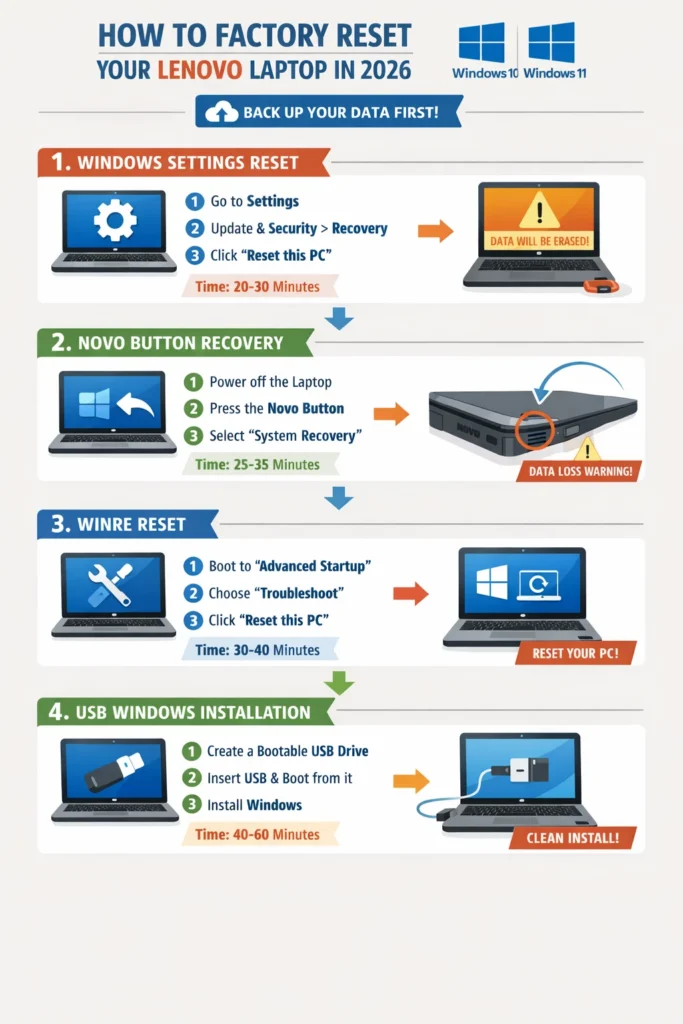
Methods to Factory Reset a Lenovo Laptop
There are several reliable ways to reset a Lenovo laptop. The best method depends on whether Windows is functioning normally or experiencing severe issues.
| Reset Method | Difficulty | When to Use |
| Windows Settings Reset | Easy | Laptop working normally |
| Novo Button Recovery | Easy | Cannot log into Windows |
| Windows Recovery Environment | Medium | Boot issues |
| USB Windows Installation | Advanced | Severe system corruption |
Each of these methods offers a different recovery approach.
Let’s explore them in detail.
Factory Reset Lenovo Laptop Using Windows Settings
This is the simplest and most convenient method if your laptop is still functioning normally and you can access your account.
Windows includes a built-in tool called Reset This PC, which reinstalls the operating system while giving you the option to keep or remove files.
Step-by-Step Instructions
- Click the Start Menu
- Open Settings
- Select System
- Click Recovery
- Find Reset This PC
- Click Get Started
Windows will now ask you to select a reset option.
Reset Options Explained
| Option | What It Does |
| Keep My Files | Removes apps but keeps personal files |
| Remove Everything | Deletes all files and applications |
If you are preparing your laptop for resale or donation, selecting Remove Everything is recommended.
Reset Process
After selecting your preferred option:
- Confirm the reset choice
- Windows prepares the reset environment
- The laptop restarts automatically
- The system begins reinstalling Windows
During this process, Windows removes old files and rebuilds the operating system.
How Long Does It Take?
The reset procedure usually takes 30 to 60 minutes, but several factors can influence the duration:
- Storage type (SSD vs HDD)
- System hardware specifications
- Amount of installed software
- Current system condition
Modern laptops equipped with SSD drives typically complete the process much faster.
Factory Reset Using Lenovo Novo Button
Many Lenovo laptops include a specialized recovery feature called the Novo Button.
This small hardware button allows you to access recovery tools even when Windows cannot boot properly.
What Is the Novo Button?
The Novo Button is a dedicated recovery key built into many Lenovo laptops.
Pressing this button launches a special boot menu that provides access to several recovery options.
Where Is the Novo Button Located?
It is typically located:
- Near the power button
- On the side edge of the laptop
- Inside a small pinhole labeled “Novo.”
Some laptops require a paperclip, SIM tool, or pin to activate the button.
Steps to Use the Novo Button
- Turn off the laptop completely
- Insert a paperclip into the Novo hole
- Press gently to activate the button
- The Novo Menu appears
- Select System Recovery
- Follow the instructions displayed on the screen
The system will start the Lenovo recovery process.
Advantages of Novo Button Reset
The Novo Button provides several advantages:
- Works when Windows fails to boot
- Uses the Lenovo recovery partition
- Easy for beginners
- Faster than reinstalling Windows manually
- Built directly into the laptop hardware
This method is particularly useful when software errors prevent Windows from loading.
Reset Lenovo Laptop Using Windows Recovery Environment (WinRE)
If your laptop cannot start normally, you can use the Windows Recovery Environment (WinRE).
WinRE is a special troubleshooting interface that allows users to repair, reset, or reinstall Windows.
How to Access WinRE
Follow these steps:
- Turn on your laptop
- Go to the login screen
- Click the Power icon
- Hold the Shift key
- Click Restart
The laptop will restart into Windows Recovery Mode.
Reset Steps
Once you enter WinRE:
- Click Troubleshoot
- Select Reset This PC
- Choose your preferred reset option
- Follow the on-screen instructions
Windows will begin reinstalling the operating system automatically.
This method works on both Windows 10 and Windows 11 systems.
Factory Reset Lenovo Laptop Using USB Recovery Drive
If your laptop is severely damaged or the recovery partition is missing, you may need to reinstall Windows using a bootable USB drive.
This method installs a completely fresh copy of Windows.
When to Use USB Recovery
Use this method if:
- Laptop stuck in boot loop
- Recovery partition missing or corrupted
- Reset options fail repeatedly
- System files are severely damaged
Steps to Reinstall Windows Using a USB
- Create a bootable Windows USB drive using the Media Creation Tool
- Insert the USB drive into the laptop
- Restart the system
- Press the Boot Menu key (F12)
- Select the USB device
- Click Install Windows
- Format the system drive if needed
- Complete the installation process
After installation, the laptop will run a fresh and fully functional Windows environment.
Comparison of Reset Methods
Here is a quick comparison of all available reset methods.
| Method | Requires Login | Difficulty | Best Use Case |
| Windows Settings | Yes | Easy | Minor problems |
| Novo Button | No | Easy | Cannot log in |
| WinRE Reset | No | Medium | Boot problems |
| USB Install | No | Advanced | Severe corruption |
Choosing the correct method ensures a smooth recovery process.
Pros and Cons of Factory Reset
Factory resetting offers numerous advantages, but there are also a few disadvantages to consider.
Pros
Fixes major software problems
Removes malware and viruses
Improves laptop performance
Removes unnecessary programs
Restores system stability
Prepares device for resale
Cons
Deletes installed applications
Requires reinstalling programs
Possible data loss without backup
Cannot fix hardware problems
Despite these drawbacks, a factory reset remains one of the most powerful troubleshooting solutions.
Troubleshooting Lenovo Factory Reset Problems
Although factory resets usually work smoothly, some users experience errors or interruptions during the reset process.
Reset Stuck at a Percentage
Sometimes the reset process may freeze at 30%, 50%, or 99%.
Possible causes include:
- Corrupted recovery files
- Hard drive errors
- Interrupted system updates
Solution
Use the USB Windows installation method to reinstall the operating system.
Laptop Stuck on Lenovo Logo
This issue can occur if the reset fails halfway.
Fix
- Force restart the laptop
- Enter WinRE recovery mode
- Run Reset This PC again
Novo Button Not Working
Some newer Lenovo laptops no longer include a physical Novo Button.
Alternative solutions
- Use WinRE recovery
- Reset through Windows settings
- Reinstall Windows using USB recovery
Laptop Won’t Boot After Reset
In rare cases, the laptop may fail to start after resetting.
Possible reasons include:
- Missing boot files
- Corrupted installation
Fix
Use:
- Startup Repair
- Or reinstall Windows using a USB.
Expert Tips Before Factory Resetting
To avoid complications during the reset process, follow these professional tips.
Important Safety Tips
- Keep the laptop connected to power
- Backup all important files
- Disconnect external drives
- Ensure a stable internet connection
- Update Windows after reset
- Install antivirus protection
These precautions help ensure a smooth and successful reset process.
If You Plan to Sell Your Laptop
If you are selling or giving away the device, choose:
Remove Everything → Clean Drive
This option performs a secure data wipe, preventing others from recovering your personal information.
FAQ
A: Yes. You can reset your laptop without logging in using:
Novo Button recovery
Windows Recovery Environment
Bootable USB drive
These methods bypass the login screen completely.
A: Most resets take 30 to 60 minutes, although older systems with mechanical hard drives may require up to 90 minutes.
A: Yes. A complete factory reset removes malware, viruses, spyware, and corrupted files.
However, if infected files remain on external storage devices, they may reintroduce the problem.
A: Yes. Resetting removes unnecessary applications, clears system clutter, and restores essential system files, which can significantly improve speed and responsiveness.
A: Yes. Factory resetting is safe when performed correctly.
Conclusion
Learning how to factory reset my Lenovo Laptop is an essential skill for every computer owner. Whether your system has become slow, infected with malware, or unstable after years of use, resetting the laptop can restore speed, reliability, and stability.
The best reset method depends on your situation:
- Use Windows Settings if your laptop works normally
- Use Novo Button Recovery if you cannot log in
- Use WinRE Reset for boot problems
- Use a USB Windows installation for severe system failures
By following the step-by-step methods in this guide, you can safely restore your Lenovo laptop and resolve many common system issues.
If your laptop still experiences problems after resetting, the issue may be hardware-related, such as a failing SSD, faulty RAM, or motherboard defects.