Introduction
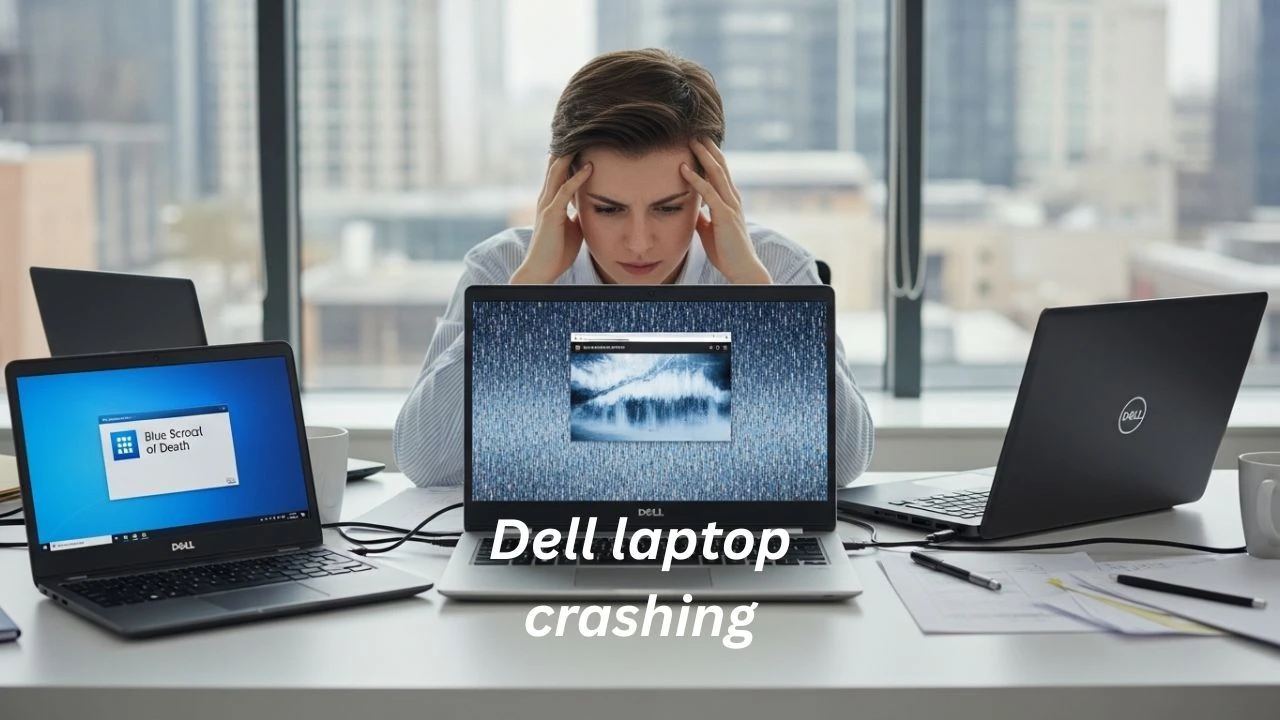
A Dell laptop that keeps crashing isn’t just inconvenient—it can disrupt your workflow, ruin online classes, interfere with gaming, and even damage critical files or hardware over time. Modern Dell Laptops are reliable, used for work, school, gaming, and enterprise applications. Yet, even the most robust systems are vulnerable to crashes when software conflicts, outdated drivers, or hardware issues arise.
In 2026, the complexity of Windows 10 and Windows 11 updates, combined with increasingly demanding software and AI-assisted apps, means that crashes are more common than ever. Many users respond by applying random fixes or unsafe updates, which often worsen the problem. Understanding the root cause is key: every crash has a reason, and most can be resolved with precise troubleshooting.
This guide goes beyond generic advice. It equips you with Dell-specific solutions, clear diagnostic steps, and expert-level insights so you can restore stability efficiently.
What Makes This Guide Different?
Unlike generic “try this” blog posts, this Dell laptop crashing fix guide (2026) is designed with:
- Dell-specific BIOS & firmware logic
- Windows 10 and Windows 11 crash patterns
- Beginner-to-advanced diagnostic flow
- Real technician troubleshooting hierarchy
- Search-engine-optimized pillar structure
This guide doesn’t throw fixes randomly. It teaches you how to think like a technician.
In This Guide, You Will Learn
- Why Dell laptops crash (clearly explained causes)
- How to identify the exact crash trigger
- How to fix BSODs, freezes, restart loops, and shutdowns
- BIOS, driver, thermal, and power-related solutions
- How to permanently prevent future crashes
This guide applies to Inspiron, Latitude, Vostro, XPS, Precision, and Alienware series.
Understanding Dell Laptop Crashing Symptoms
Before attempting repairs, you must recognize the crash pattern. Each symptom points toward a different subsystem failure.
Common Dell Laptop Crash Symptoms
- Laptop shuts down without warning
- Blue Screen of Death appears randomly
- Crashes during Windows startup
- System stuck in a reboot cycle
- Screen freezes, but power stays on
- Crashes under gaming or heavy workloads
- Instability after Windows updates
- Black screen followed by automatic restart
Why Does a Dell Laptop Keep Crashing?
Almost all Dell laptop crashes fall into five core categories. Let’s break them down using real-world logic.
Software & Driver Conflicts (Most Common Cause)
The leading cause of Dell laptop crashes is driver incompatibility, especially after Windows feature updates.
Common Software-Related Triggers
- Outdated graphics drivers
- Corrupted chipset or storage drivers
- Incomplete Windows updates
- Conflicting third-party utilities
- Excessive background services
- Malware or hidden system processes
BIOS & Firmware Issues (Dell-Specific Risk)
Dell laptops rely heavily on BIOS-controlled power, thermal, and ACPI management. When BIOS and Windows disagree, instability begins.
BIOS-Related Crash Causes
- Buggy BIOS releases
- Firmware incompatible with recent Windows builds
- Corrupted BIOS configuration
- ACPI BIOS stop errors
- Power table mismatches
Critical Warning:
An unstable BIOS can cause:
- Startup crashes
- Boot loops
- Random shutdowns
- Complete system failure
Hardware Problems (Critical & Often Ignored)
If your Dell laptop crashes even in Safe Mode, hardware failure becomes the prime suspect.
Common Hardware Crash Triggers
- Defective or mismatched RAM modules
- Aging or failing SSD/HDD
- Overheating CPU or GPU
- Weak battery or faulty power adapter
- Motherboard voltage instability
Hardware crashes often feel “random,” but they follow repeatable stress patterns.
Overheating & Thermal Shutdowns
Dell systems use aggressive thermal protection. When temperatures spike beyond safe limits, the laptop shuts down instantly.
Overheating Causes
- Dust-clogged cooling fans
- Blocked air vents
- Dried or poorly applied thermal paste
- Fan motor failure
- Using a laptop on soft surfaces
Power Delivery & Battery Issues
Dell laptops are extremely sensitive to unstable power input.
Power-Related Crash Causes
- Degraded battery cells
- Non-original or low-quality chargers
- Loose charging ports
- Power management driver bugs
- Sudden voltage drops under load
Many crashes occur during gaming, rendering, or while charging.
Step-by-Step Dell Laptop Crash Troubleshooting
This section follows a professional diagnostic ladder — not random trial-and-error.
Run Dell Pre-Boot System Diagnostics
This test quickly identifies Hardware-level faults.
How to Run:
- Power off the laptop
- Turn it on and press F12
- Select Diagnostics
- Allow the test to complete
It Tests:
- RAM
- CPU
- Storage drives
- Cooling fans
- Motherboard sensors
Update or Roll Back Drivers
Drivers are the top instability trigger.
Focus On:
- Graphics drivers
- Chipset drivers
- Storage controllers
- Power management drivers
Avoid third-party driver tools — they often break stability.
BIOS Update or Rollback (Critical)
If crashes began after a BIOS update, rolling back may fix everything.
Best Practices:
- Update BIOS only when necessary
- Never interrupt flashing
- Reset BIOS to defaults
- Use official Dell firmware only
Check Overheating & Thermal Health
Monitor:
- CPU temperature
- GPU temperature
- Fan behavior
Safe Temperature Ranges
| Component | Normal Load | Heavy Load |
| CPU | 40–70°C | Up to 90°C |
| GPU | 45–75°C | Up to 85°C |
Test RAM & Storage Health
Faulty RAM or storage causes:
- Random BSODs
- Freezing
- Startup crashes
Repair Windows System Files
Corrupt system files often appear after failed updates.
Repair Tools:
- System File Checker (SFC)
- DISM
Scan for Malware
Malware can:
- Spike CPU usage
- Modify system files
- Trigger silent crashes
Clean Windows Reinstallation (Last Resort)
If all else fails:
- Backup data
- Clean install Windows
- Install drivers manually in the correct order
Common Dell Laptop BSOD Stop Codes Explained
| Stop Code | Meaning | Likely Fix |
| IRQL_NOT_LESS_OR_EQUAL | Driver memory conflict | Update drivers |
| SYSTEM_SERVICE_EXCEPTION | Kernel error | Rollback drivers |
| ACPI_BIOS_ERROR | BIOS incompatibility | BIOS update/rollback |
| MEMORY_MANAGEMENT | RAM failure | Replace RAM |
| CRITICAL_PROCESS_DIED | Corrupt files | SFC / DISM |
Dell Diagnostic & Recovery Tools You Should Know
Many users ignore the built-in Dell tools.
Essential Tools
- Pre-Boot Diagnostics
- System Recovery Environment
- Official Driver & Firmware Utilities
These tools are designed specifically for Dell hardware.
Pros & Cons of Dell Laptop Stability
Pros
- Strong diagnostics
- Enterprise-grade BIOS
- Effective thermal protection
- Long-term driver support
Cons
- BIOS updates can be risky
- Sensitive to power quality
- Thermal paste quality varies
- Security updates may impact stability
How to Prevent Dell Laptop Crashes Permanently
Best Practices
- Keep Windows and drivers updated
- Clean the cooling system every 6–12 months
- Use the original charger and battery
- Avoid unnecessary BIOS updates
- Monitor temperatures
- Install trusted software only
FAQs
A: Driver incompatibility is the most common reason.
A: Yes. Dell laptops shut down instantly to prevent damage.
A: Crashes in Safe Mode usually indicate hardware.
A: No. Many BSODs are driver-related and fixable.
Conclusion
Dell Laptop Crashes can be frustrating, but almost all have a diagnosable cause. By following this guide’s expert steps—running diagnostics, updating or rolling back drivers, monitoring thermal and power health, repairing Windows files, and knowing when to involve Dell support—you can restore stability and protect your investment.
For persistent issues, always refer to Dell’s official support using your Service Tag for hardware-level analysis. Staying proactive with updates, thermal management, and trusted software can prevent most crashes from happening in the first place.