Introduction
Has your Dell Laptop crashed while you were working on an important project, attending online classes, gaming, or even just browsing? One moment, everything is smooth—and the next, your screen freezes, a Blue Screen of Death (BSOD) appears, or your system shuts down without warning.
In 2026, laptops are more powerful than ever, but they are also more dependent on complex drivers, firmware updates, and thermal systems. This means even high-quality machines like Dell laptops can still experience crashes due to software conflicts, overheating, or aging hardware.
A system crash is not just frustrating—it can lead to:
- Loss of important documents and unsaved work
- Corrupted Windows system files
- Interrupted productivity and deadlines
- Fear of permanent data loss
The good news is this: most Dell laptop crashes are fully fixable and often preventable with the right approach.
Explanation
Dell laptops are built for durability, and with proper troubleshooting, you can usually restore your system without replacing the device.
This 2026 updated Dell crash recovery guide will help you:
- Identify crash types and their causes
- Fix BSOD, boot failures, and freezing issues
- Recover lost or inaccessible data safely
- Prevent future crashes with modern best practices
Whether you are a student, professional, gamer, or casual user, this guide is designed to help you recover your system step by step—even if you have no technical background. That any person can easily fix their laptop with confidence.
Cloud Backup & Hybrid Recovery Systems
In 2026, many users are shifting to hybrid recovery strategies:
- Local SSD + Cloud backup (OneDrive, Google Drive)
- Automatic sync before Windows updates
- Real-time file versioning
This reduces data loss risk significantly, even during unexpected crashes.
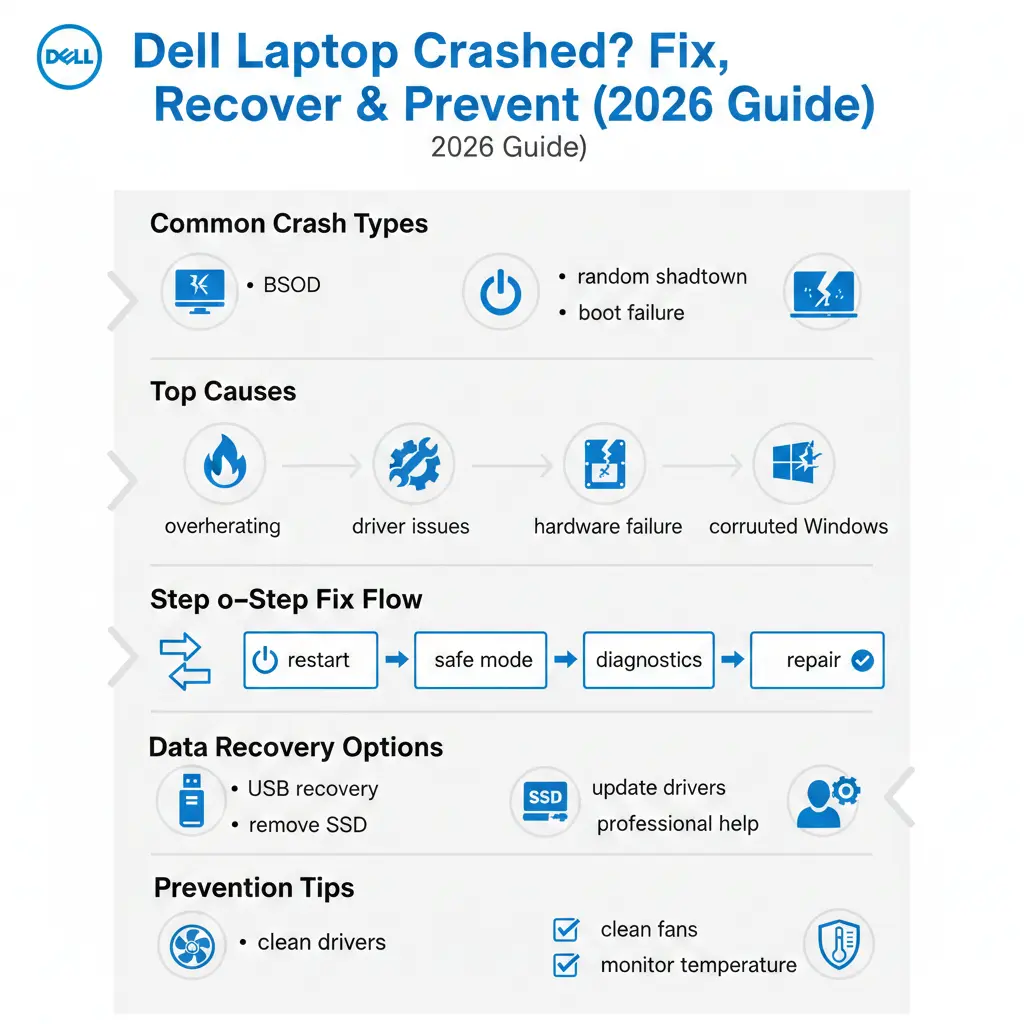
Understanding Different Types of Dell Laptop Crashes
- Error message: Displaying a STOP CODE
- Laptop restarts automatically
- Continuous reboot loop
- Common BSOD Stop Codes:
- MEMORY_MANAGEMENT
- CRITICAL_PROCESS_DIED
- IRQL_NOT_LESS_OR_EQUAL
- SYSTEM_THREAD_EXCEPTION_NOT_HANDLED
- What the Blue Screen of Death usually indicates:
- Defective or failing RAM modules
- Incompatible or corrupted drivers
- Damaged Windows system files
- Deteriorating SSD or HDD
- Random Shutdowns & Freezing Issues
If your Dell laptop just turns off all of a sudden or freezes up without showing you what is wrong, the issue is usually something to do with the hardware of your Dell laptop or the power supply of your Dell laptop.
These crashes are like safety stops. They happen to protect the parts of the computer from getting damaged. The computer does this to keep the components safe. These safety stops are usually called shutdowns. They are there to protect the components of the computer.
Boot-Time Crashes (Dell Laptop Won’t Boot)
Boot-time crashes are really frustrating for users. This is because Windows does not load all when this happens. Boot time crashes make it so you cannot even use your computer. Boot-time crashes are a problem because you need Windows to load, so you can do things on your computer.
- Stuck on the Dell logo
- Endless boot loop
- “Automatic Repair Failed” message
- Black screen after pressing the power button
- What It Usually Means:
- Corrupted Windows boot configuration
- SSD or HDD failure
- BIOS or firmware malfunction
Top Causes of Dell Laptop Crashes
Understanding the root cause is the key to preventing repeated system failures.
Hardware Failures (Extremely Common)
As laptops age, internal components gradually degrade.
Common Hardware-Related Problems:
- Failing RAM → memory errors & BSOD
- Bad SSD/HDD sectors → boot failure
- Overheating CPU/GPU → emergency shutdown
- Aging battery → sudden power loss.
Software & Driver Conflicts
Windows is powerful, but it’s also sensitive to incompatibilities.
Software-Related Crash Triggers:
- Incomplete or buggy Windows updates
- Outdated chipset or graphics drivers
- Malware infections or rootkits
- Registry corruption
Dell laptops are particularly sensitive to:
- Chipset drivers
- Intel / AMD graphics drivers
- BIOS firmware updates
Overheating & Power Delivery Problems
Overheating is often called the silent killer of laptops.
Why Overheating Happens:
- Dust-clogged cooling fans
- Dried or degraded thermal paste
- Poor airflow design
- Continuous gaming or multitasking
Consequences of Overheating:
- Sudden shutdowns
- Performance throttling
- Random freezes
- Long-term motherboard damage
Step-by-Step Dell Laptop Crash Troubleshooting
These steps are safe and beginner-friendly.
Force Restart
- Hold the Power button for 10–15 seconds
- Clears temporary system lockups
Disconnect All External Devices
- USB drives
- External keyboard or mouse
- External hard disks
Faulty peripherals frequently crash Windows during boot.
Check Windows Updates
- Go to Settings → Windows Update
- Install all stability and security patches
Run Windows Startup Repair
- Enter Automatic Repair Mode
- Select Startup Repair
AI-Based System Monitoring in Dell Laptops
Modern Dell systems increasingly rely on AI-based diagnostics integrated into tools like SupportAssist. These systems now:
- Predict hardware failure before it happens
- Detect abnormal temperature spikes in real time
- Recommend driver updates automatically
This shift means many crashes can now be prevented early—if users keep diagnostics enabled and updated.
Intermediate Diagnostics (Highly Recommended)
If beginner fixes fail, proceed here.
Boot into Safe Mode
Safe Mode loads minimal drivers only.
- If the system works → driver or software issue
- If system crashes → hardware fault
Run Dell SupportAssist Diagnostics
Dell SupportAssist can:
- Scan hardware health
- Detect driver conflicts
- Install critical firmware updates
Update Drivers & BIOS
- Use only Dell’s official support website
- Never install drivers from random third-party sites.
Advanced Solutions
Proceed only if you’re confident.
Dell Preboot System Assessment (PSA)
- Press F12 during startup
- Select Diagnostics
PSA checks:
- RAM integrity
- Storage health
- CPU performance
- Motherboard condition
Analyze Minidump Files
- Location: C:\Windows\Minidump
- Helps identify BSOD root causes
Test RAM & Storage
- Windows Memory Diagnostic
- SSD health monitoring tools
Dell Laptop Crash Troubleshooting Table
| Problem Symptom | Likely Cause | Recommended Fix |
| BSOD with stop code | RAM or driver issue | Update drivers, test memory |
| Random shutdown | Overheating | Clean fans, replace thermal paste |
| Won’t boot | Storage failure | Run PSA diagnostics |
| Freezing | Malware or corruption | Full antivirus scan |
| Boot loop | Corrupt Windows files | Startup Repair or reinstall |
How to Recover Data After a Dell Laptop Crash
Bootable Recovery USB (Recommended)
Tools:
- EaseUS
- Recuva
Steps:
- Create a recovery USB on another PC
- Boot the Dell laptop from USB
- Copy files to the external drive
Remove Drive & Connect to Another PC
- Remove SSD/HDD
- Use a USB enclosure
- Copy data safely
Professional Data Recovery
Recommended if:
- Drive not detected
- Clicking sounds from the HDD
- SSD not recognized
Dell Built-in Diagnostic Tools
Dell SupportAssist
- Automatic hardware scans
- Driver and BIOS updates
- System health monitoring
Preboot System Assessment (PSA)
- Runs before Windows loads
- Accurately detects hardware failure
Preventing Dell Laptop Crashes
Prevention saves time, money, and stress.
Best Prevention Practices:
- Clean cooling vents every 3–6 months
- Keep BIOS and drivers updated
- Monitor CPU & GPU temperatures
- Replace degraded batteries
- Use a surge protector
Pros & Cons of Dell Laptop Reliability
Pros:
- Strong build quality
- Excellent diagnostic utilities
- Reliable driver ecosystem
Cons:
- BIOS updates are critical
- Thin models overheat if neglected
FAQs
A: Overheating, driver conflicts, failing hardware, or corrupted system files are the most common reasons.
A: It identifies the exact Windows component or process that triggered the crash.
A: Yes. Overheating often leads to shutdowns, freezes, and boot failures
Conclusion
A Dell Laptop Crash does NOT mean permanent damage or the end of your device. In most cases, crashes are caused by fixable issues such as driver conflicts, overheating, or early hardware degradation.
The key is to act methodically:
- Identify the crash type
- Run built-in diagnostics (PSA & SupportAssist)
- Recover data before deep repairs
- Apply preventive maintenance regularly
In 2026, Dell systems will be smarter and more self-diagnostic than ever, meaning users who stay proactive can avoid most serious failures entirely.
If you follow the steps in this guide, you can restore stability, protect your data, and significantly extend your laptop’s lifespan.