Introduction
A sudden hiccup on a Lenovo laptop screen might halt whatever you’re doing – mid-essay, mid-meeting, or deep into a game. Lenovo laptop screen glitch: Flickering without warning, streaks cutting across the view, odd flashes, total blackouts, warped visuals – all of these mess with focus. When it happens, one thought hits fast: what triggered this screen failure? It does not matter if you’re taking notes, building spreadsheets, or chasing high scores; confusion follows every glitch.
Jump ahead to 2026 – this guide walks you through every angle of the issue. Because problems show up differently, we cover what sparks them, how to check symptoms, and then move into clear fixes. After following along, spotting if it’s a software hiccup becomes second nature, just like knowing when hardware might be at fault. Since some models act up in unique ways, targeted advice helps narrow things down. When progress stalls, the next step reveals itself: reaching out to Lenovo or lining up expert help. Throughout, each part builds without skipping steps, so confusion fades slowly, replaced by clarity. Even oddball behaviors make sense once patterns emerge from the noise. So after finishing, hesitation gives way to confidence – not because everything’s fixed, but because direction feels certain.
What Is a Lenovo Laptop Screen Glitch?
Now and then, a laptop screen might show something odd instead of the usual image. These hiccups can pop up in many forms – like flickering lines or patches that refuse to change color. Sometimes colors shift without warning, while shadows drift across like fog on glass. A frozen frame may stick around long after it should have moved on. Other times, parts of the picture vanish into darkness even when the rest stays bright.
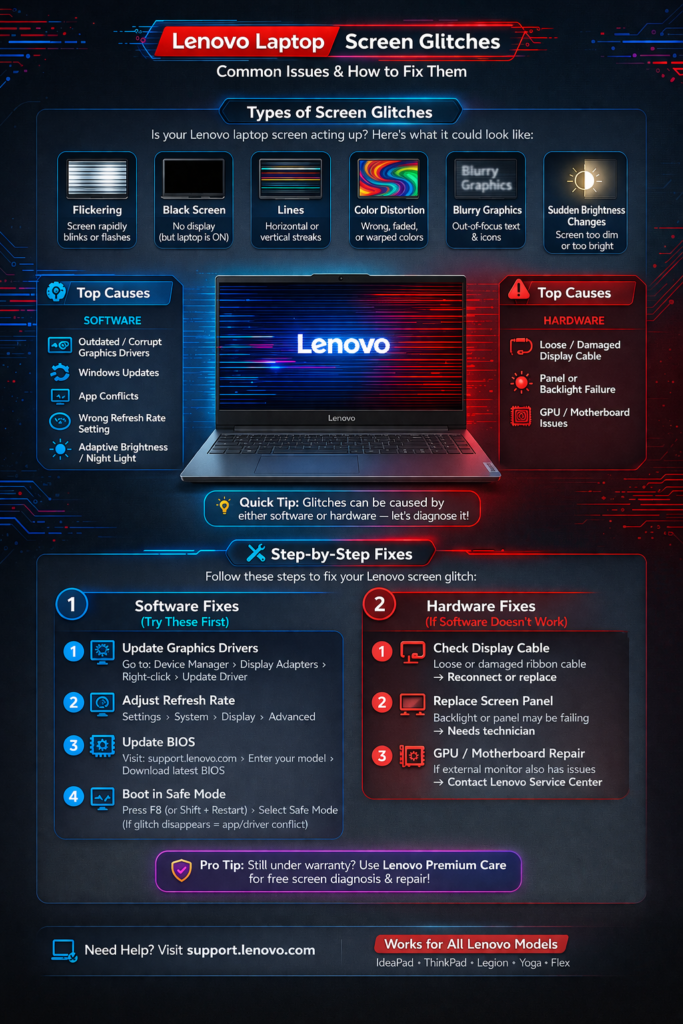
- Flickering screens – rapid flashing or instability in brightness
- Random blackouts – screen turns completely blank temporarily
- Vertical or horizontal lines – stripes or bars across the display
- Color distortions – unusual or inaccurate colors
- Blurry or warped graphics – unclear text or images
- Sudden brightness changes – screen dims or brightens abruptly
Headaches might start not because of stress, but a flickering screen. Spotting what’s wrong fast means less risk down the line. Eye fatigue often points beyond tiredness – sometimes it’s the machine breaking down inside. Fixing things sooner avoids bigger bills later. A shaky display could be more than an annoyance – possibly a hardware failing without warning.
Why Does This Happen? (Top Causes)
A flickering Lenovo display might stem from a software hiccup or worn-out parts – yet one can spark the other. Pinpointing the real cause makes fixing it faster. What matters most is knowing where it started.
Software Causes
Out of nowhere, problems with programs often mess up what shows on screen. Things like buggy updates or clunky apps tend to be behind these hiccups.
- A window into your computer’s performance can be its screen, especially when things go off track. If communication breaks down between the software and the screen, glitches might show up out of nowhere. Old driver versions sometimes fail to keep up with updates elsewhere. Mismatches like these often lead to flashing displays or locked-up visuals on laptops.
- Now and then, a Windows update shifts how screens are set up, leading to glitches. Sometimes things look off afterward because the system rearranged what was already working. A fresh patch might reset monitor positions or resolution without asking first. After such changes, visuals flicker or misalign until corrected manually.
- A few apps can mess up how things look on screen. Gaming tools that sit on top might clash with what you see. Video editing programs sometimes struggle to keep up. Heavy-duty graphics software could cause glitches, too.
- Flickering sometimes shows up on laptops set to faster screen updates – like 120Hz or even 144Hz. Older screens tend to react badly when connected externally. That jump in refresh speed doesn’t always play well with every Display type.
- Screen flicker might pop up when Windows tweaks brightness on its own or pushes power savings too hard.
Hardware Causes
Finding nothing wrong in software? Then take a close look at the physical parts of the device. Issues often come from worn cables, loose connections, or damaged internal components.
- A twist in the screen’s wiring often shows up close to the hinge. Movement each time the lid flips open slowly frays the link there. Stress builds right where flex happens most. Over days, that spot loses steady contact. Connection slips when the joint bends too much. Wear settles in after many rounds of motion. The joint suffers first under constant shift.t
- Old displays sometimes dim in spots. Flickering can start after years of use. Uneven lighting creeps in slowly. Some areas glow weaker than others. Time affects how light spreads behind glass. Parts wear out, causing shadows. Light leaks appear at the edges. Brightness shifts across the surface. Panels lose their even look. Years pass, performance drops.
- GPU or Motherboard Malfunctions – Serious problem if an external monitor also exhibits flickering
- Physical Screen Damage – Dead pixels or impact damage can distort visuals
How to Confirm if the Issue Is Software or Hardware
Finding out why it happened first means less time spent and fewer costs later. A quick look at the root cuts long delays down.
BIOS Test
- Power off the laptop
- Press F2 or Del to enter BIOS
- Observe the display:
- Flicker in BIOS → likely hardware
- A steady screen probably means it’s a program thing. Software often handles how things look when they stay put.
External Monitor Test
- Fewoptionsexistforlinkingdevicesvisually- HDMI steps in cleanly. AdifferentpathappearswithDisplayPort steppingforward
- Check the external display:
- Stable → internal screen/cable issue
- Flickering → GPU, motherboard, or driver issue
Step-by-Step Fixes
Software Solutions
Most of the time, updating software works without trouble. A quick change often solves the problem fast. Money stays saved when choosing this path.
Restart Graphics Driver
Press Win + Ctrl + Shift + B. The screen will blink briefly to reset the driver.
Aquickflashonscreenhappenswhenyoupress Win, plus Control, Shift, and B together- that restarts the graphics driver. The flicker marks it’s working.
- Open Device Manager → Display Adapters.
- Right-click → Update Driver or uninstall & reinstall via Lenovo Support, Intel, AMD, or NVIDIA.
Tip: Always use official sources to avoid malware or compatibility problems.
Adjust Refresh Rate
- Start by opening Device Manager. LookforthesectionlabeledDisplay Adapters.
- Update or reinstall drivers using the manufacturer’s website after right-clicking
- Watch out- sketchysitesmightsneakinbugsor causeglitches. Stick to trusted spots instead of gambling on unknowns.
Adjust Refresh Rate
- Head into Settings first. From there, tap on System next. Move to Display after that. Choose Advanced Display Settings when ready.
- Set to recommended refresh rate (usually 60Hz)
- Disable Adaptive Brightness
- Start at the Control Panel. Head into Power Options next. Open Advanced Settings after that. Find the Display section down below. Turn off adaptive brightness there.
- Update BIOS and Firmware
- Lenovo Vantage or the support site offers BIOS updates
- Mind each step closely. When halted mid-process, harm might happen to the machine
- Safe Mode Diagnosis
- Boot into Safe Mode
- When the flicker stops, a separate app might be behind it. The last thing you tried might be causing trouble – take it off your phone. Or turn off anything sitting on top of games or tools
- Windows Troubleshooter
- Hardware and devices troubleshooter settings
- Automated tool detects stubborn display issues
Hardware Solutions
When updates do not solve the problem, physical adjustments could come into play.
- Inspect / Replace Display Cable
- Common near hinges due to repetitive opening/closing
- Requires safe disassembly of the laptop panel
- Panel or Backlight Replacement
- If the screen still flickers even when cables seem fine, this step becomes necessary.
- Use original equipment pieces instead of matching alternatives when needed
- GPU / Motherboard Repairs
- External monitor flickers or artifacts persist
- Get in touch with a Lenovo support expert or someone skilled in repairs
Model-Specific Troubleshooting
IdeaPad
- Crashes might happen when drivers clash. Tough gaming sessions push hardware hard.
- Start fresh with updated drivers when glitches pop up. Try switching to the suggested refresh settings if things look off. Heat can cause trouble – keep devices cool whenever possible.e
Legion
- Overheating often comes from a hard-working graphics processor. Instead of smooth performance, screen flickers happen when display updates clash with the system speed.
- Fewer screen flickers happen when you drop the refresh speed. Legion tools let you adjust graphics power on the fly. Newer BIOS versions often smooth out odd hiccups.
Yoga
- Causes: Hinge cable damage due to folding
- Start by checking the hinge cable for damage – skipping regular inspections might lead to bigger issues later. Bending the device fully every so often? That adds stress, so it is best to limit those moves.
ThinkPad
- Wrong power settings might be behind the problem. On top of that, automatic light adjustment can play a role,e too
- Start by changing how your device uses energy. Instead of relying on automatic light adjustments, turn them off. Newer system updates might solve what older versions miss. Each step works better when taken one at a time
When to Contact Lenovo Service or Consider Replacement
Seek professional help if: The external monitor also flickers
- BIOS flickering occurs
- Frequent blackouts or screen artifacts
- Physical screen damage
Next Steps:
- Use the Lenovo warranty if available
- Visit the official Lenovo service center
- Consider laptop replacement if the motherboard or GPU is failing
Preventive Maintenance Tips
- Keep drivers and BIOS updated
- Avoid forcefully closing the lid
- Clean vents to prevent overheating
- Backup data before updates
- Use cooling pads for gaming laptops
- Handle hinges carefully (Yoga/2-in-1)
FAQ
A: Updates can break driver compatibility. Updating GPU drivers and BIOS resolves most flicker issues.
A: Test BIOS and external monitors. A flicker in the BIOS signals hardware.
A: Software-related issues are fixable at home; hardware problems may need technicians.
A: Prolonged flicker can cause eye strain, fatigue, and headaches.
Pros & Cons of Fixing Screen Glitches
| Pros | Cons |
| Free and easy software solutions | Hardware repairs may be expensive |
| Diagnostics prevent unnecessary replacement | DIY repairs risk damage |
| Preventive maintenance prolongs laptop life | Flicker may indicate aging components |
Conclusion
A flickeronyourLenovo Laptop doesnotmeanitis broken. Most problems come from settings, outdated drivers, or mismatched refresh speeds – things you can adjust yourself. Start by restarting the system, then look into display updates instead of panicking. Try plugging in another screen to see if the image holds. Peek inside the BIOS menu while avoiding sudden moves. Watch how the machine behaves under different conditions. A loose cable might be hiding beneath the surface. Test each part without rushing. Confidence grows when small clues add up.
A solid plan sits in front of you – clear steps, trusted sources woven through. Fixingflickeringscreensona Lenovo becomes doable when laid out like this. Each move follows the last without rush. Outside experts back every part. Safety is built into the process. Diagnosis comes first, then careful repairs. Prevention locks it all together at the end.











