Introduction
If your HP Laptop gets stuck on the Preparing Automatic Repair screen, it is really frustrating. You need to get to your files. This is taking a long time. This problem often happens when your laptop shuts down suddenly, or when Windows updates do not finish properly, or the power goes out, or the operating system crashes. Many people have this problem where their HP laptop is stuck in what is called an automatic repair loop. The laptop keeps restarting over but it never actually gets to the Windows desktop on your HP laptop.
The good news is that most of the time, you can fix this problem without losing your important information. This 2026 expert guide is very helpful because it shows you what to do one step at a time. It starts with things that anyone can do, and then it moves on to harder things that use the Command Prompt, which is something that computer experts often use.
Whether your HP laptop runs Windows 10 or Windows 11, whether it has a traditional HDD or a modern SSD, this comprehensive guide covers everything you need to know to restore your device to normal functionality efficiently and safely.
What Does “Preparing Automatic Repair” Mean on an HP Laptop?
When your HP laptop says Preparing Automatic Repair this means that Windows found a problem when it was starting up. Now, Windows is trying to fix the problem on its own using the Windows Recovery Environment. This is like a tool that helps fix issues with your HP laptop. The Windows Recovery Environment is trying to make your laptop work again.
Windows targets essential system components, including:
- Corrupted or missing system files
- Damaged Boot Configuration Data (BCD)
- File system errors on the hard drive or SSD
- Failed or incomplete Windows updates
- Driver or firmware incompatibilities
Typically, this automatic process takes between 10 and 30 minutes. However, if the repair mechanism itself is corrupted or obstructed, the laptop may get stuck in a repetitive loop, endlessly trying to repair itself without success.
Common Symptoms of the Automatic Repair Loop on HP Laptops
You may be experiencing an automatic repair loop if you notice the following signs:
- The HP logo appears, followed by Preparing Automatic Repair, then the laptop restarts.
- The system never reaches the login screen.
- Continuous reboot cycles or endless restart loops.
- A black screen appears after the “Diagnosing your PC” message.
- Fans spin normally, but Windows fails to load.
These indicators point to boot-level corruption, which usually involves the operating system files or boot instructions, rather than simple software glitches or minor errors.
Why Is My HP Laptop Stuck on Preparing Automatic Repair?
Based on HP official support documentation and user reports, the most common causes include:
- Corrupted Windows System Files: Sudden shutdowns, crashes, or malware infections can damage core Windows files, preventing normal boot.
- Damaged Boot Configuration Data (BCD): A missing or corrupted BCD prevents Windows from finding the startup instructions.
- Failed or Interrupted Windows Updates: Updates that stop midway may corrupt essential system files.
- Disk Errors (HDD / SSD Problems): Physical disk issues, such as bad sectors or file system corruption, can trigger repair loops.
- Driver or Firmware Conflicts: Outdated, incompatible, or corrupt drivers may block Windows startup.
- External Devices Interfering with Boot: USB drives, external hard drives, or peripherals may disrupt normal boot sequences.
- BIOS / UEFI Misconfiguration: Improper BIOS settings, Secure Boot, or TPM issues can interfere with startup.
Understanding the root cause helps in selecting the correct fix method and prevents repeated failures.
HP Laptop Preparing Automatic Repair – Step-by-Step Fix Guide
Important: Follow these steps in the order presented. Skipping steps may result in unnecessary data loss or wasted effort.
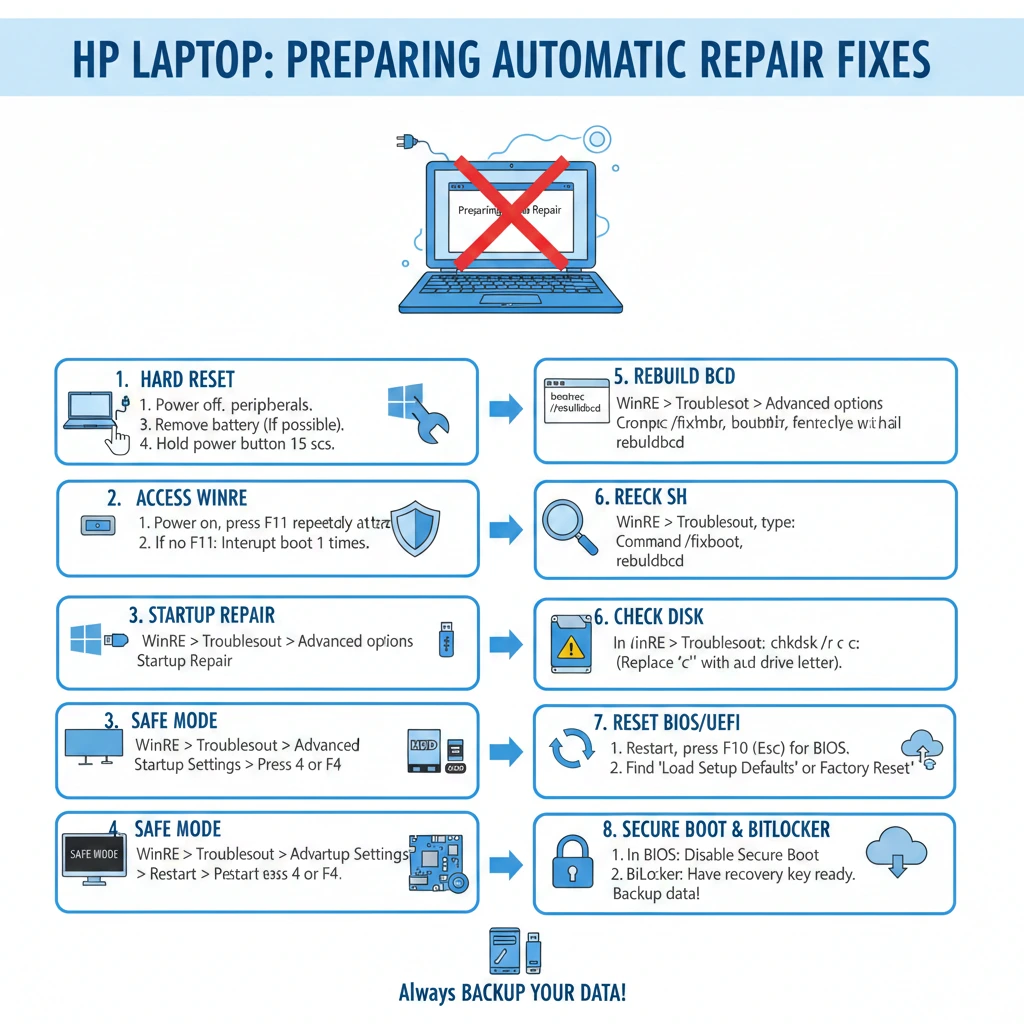
Force Shutdown & Hard Reset
Sometimes the issue is a temporary power or firmware glitch. A hard reset can resolve minor stuck states without affecting data.
Steps:
- Press and hold the Power button until the laptop completely shuts down.
- Disconnect the charger, USB devices, and external drives.
- If the battery is removable, take it out.
- Hold the Power button for 20 seconds to discharge any remaining power.
- Reconnect the battery (if removed) and charger.
- Turn on the laptop.
Why it works: Resets the embedded controller memory, clears stuck power states, and can often restore normal startup.
Access Windows Recovery Environment
The Windows Recovery Environment (WinRE) is required for advanced repair options like Startup Repair, Safe Mode, or Command Prompt fixes.
How to Force WinRE on HP Laptops:
- Turn on your laptop.
- When the HP logo appears, immediately hold the Power button to force shutdown.
- Repeat this 3 times.
- On the 4th boot, Windows will automatically launch Advanced Recovery Options.
- Navigate: Troubleshoot → Advanced Options.
Accessing WinRE ensures you can attempt a repair even if Windows fails to load normally.
Run Startup Repair
Startup Repair is a built-in Windows utility that automatically detects and fixes common boot issues.
Steps:
- Go to WinRE → Troubleshoot → Advanced Options → Startup Repair.
- Select your account and enter the password if prompted.
- Allow Windows to scan and attempt automatic repair.
Best for: Minor boot corruption, missing or damaged system files, and driver-level problems.
Boot into Safe Mode
Safe Mode loads Windows with only the essential drivers and system files, making it easier to diagnose issues caused by drivers, updates, or malware.
Steps:
- WinRE → Troubleshoot → Advanced Options → Startup Settings → Restart.
- Press F4 (or 4) to boot into Safe Mode.
- Once inside Safe Mode:
- Uninstall recent Windows updates.
- Remove newly installed drivers.
- Run antivirus or malware scans.
Why it helps: Safe Mode isolates and eliminates issues caused by incompatible drivers or recently installed applications.
Rebuild Boot Configuration Data
Rebuilding the BCD is one of the most effective ways to fix boot loops caused by corrupted boot instructions.
Steps:
- WinRE → Advanced Options → Command Prompt.
- Enter the following commands one by one:
fixmbr
bootrec /fixboot
scanos
What it does: These commands recreate the boot instructions, enabling Windows to load properly.
Check Disk for Errors
Disk corruption is a major cause of automatic repair loops, especially if the laptop has suffered sudden shutdowns or power failures.
Command:
chkdsk C: /f /r
- /f → Fixes errors on the disk
- /r → Locates bad sectors and recovers readable data
Note: Depending on drive size and errors, this scan may take 30 minutes to several hours.
Reset BIOS / UEFI to Default Settings
Improper BIOS or UEFI settings can prevent Windows from booting. Resetting to the default can resolve conflicts.
Steps:
- Restart the laptop.
- Press Esc → F10 to enter BIOS setup.
- Select Load Setup Defaults.
- Save and exit.
When helpful: After BIOS updates, OS upgrades, or failed boot attempts.
Secure Boot, TPM & BitLocker Issues
Encryption and security conflicts can trap laptops in automatic repair loops.
Try:
- Temporarily disable Secure Boot in BIOS.
- Check TPM (Trusted Platform Module) status.
- Enter BitLocker recovery key if prompted.
Last Resort: Reset This PC or Clean Install
If all else fails, consider Reset This PC or a clean Windows installation.
Reset This PC:
- WinRE → Reset This PC → Choose Keep my files.
Clean Install:
- Requires a Windows installation USB.
- Deletes all files and applications; recommended only for severe corruption or malware infections.
Troubleshooting Summary Table
| Fix Method | Difficulty | Data Safe | Success Rate |
| Hard Reset | Easy | Yes | Medium |
| Startup Repair | Easy | Yes | Medium |
| Safe Mode | Medium | Yes | High |
| BCD Rebuild | Advanced | Yes | Very High |
| CHKDSK | Advanced | Yes | High |
| Reset PC | Medium | Partial | Very High |
Pros & Cons of Windows Automatic Repair
Pros:
- Built-in Windows recovery system
- No third-party tools required
- Protects system integrity and boot files
Cons:
- Often fails with severely corrupted disks
- Limited feedback during repair
- Can trap users in endless loops
How to Prevent Automatic Repair Loops in the Future
- Avoid forced shutdowns
- Keep Windows & drivers updated
- Create system restore points regularly
- Check disk health periodically
- Use a stable power source
FAQ
A: Normally 10–30 minutes. If it loops beyond this, there is likely an underlying boot or disk issue.
A: Yes. Most fixes, like Safe Mode, BCD rebuild, and CHKDSK, preserve personal data.
A: Boot file corruption, disk errors, or interrupted updates are common causes
A: Not always. Repeated failures may indicate a failing SSD/HDD.
Conclusion
An HP Laptop stuck on Preparing Automatic Repair may seem alarming, but most issues are software-related or boot-level errors. By following this structured guide, you can:
- Break the automatic repair loop
- Recover Windows safely
- Protect important data
- Avoid unnecessary repair costs
If all software fixes fail, the problem may be hardware-related, requiring professional diagnostics. Bookmark this guide—it’s your ultimate reference for HP boot issues in 2026.











